Information Library

Members of Gazi University;
  • Students,
  • Academic Staff,
  • Administrative Staff,
  • Permanent Workers are natural members of our Library.

External Users;

  • Academic staff of other universities
  • Library protocol users
  • Gazi University graduates who hold an alumni card can benefit from our Library.
External users, as defined in the “Gazi University Library Working Principles Regulation,” can make an appointment by filling out the External User Visitor Form on our Library website.

Students who newly enroll at our university automatically become natural members of our library.

To keep your information up to date, you can apply to the “Circulation Desk” with your student ID or national ID card and request that it be updated.

Circulation Desk

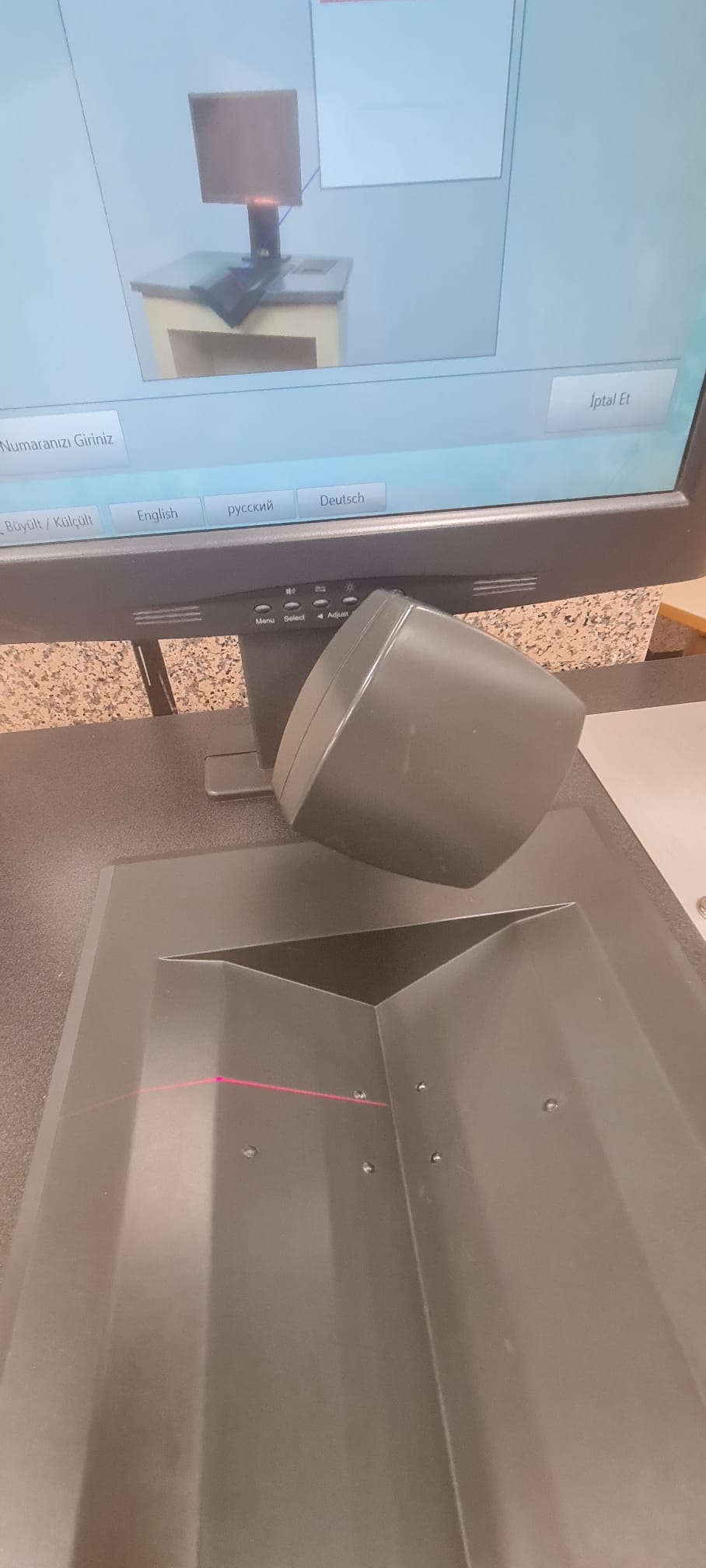
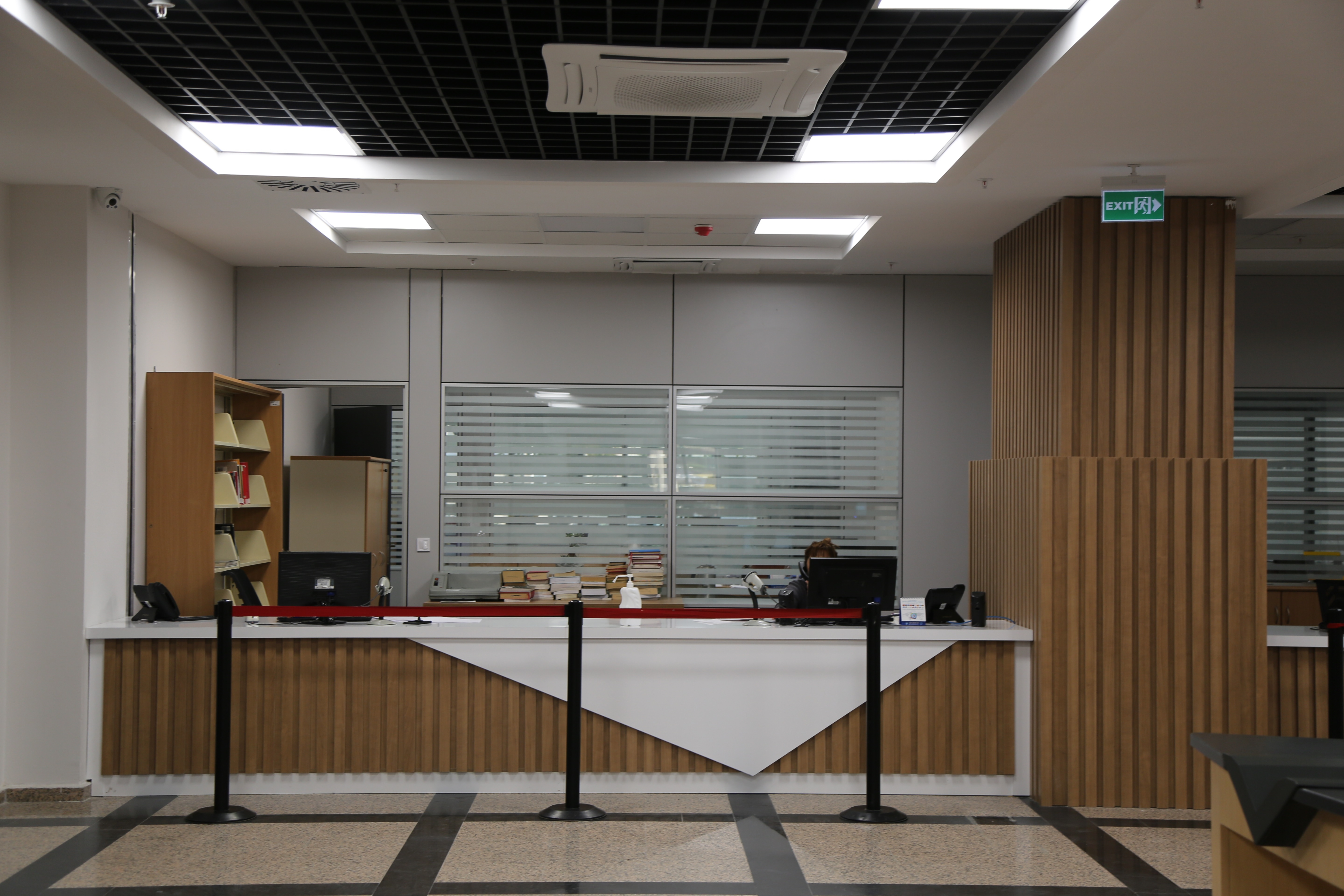
Borrowing, returning, picking up reserved materials, and clearance (checkout) procedures are handled at the “Circulation Desk” on the entrance floor of our Library. In addition, you can borrow, return, and renew items yourself using the 3 Self-Check devices located on the library's entrance floor.
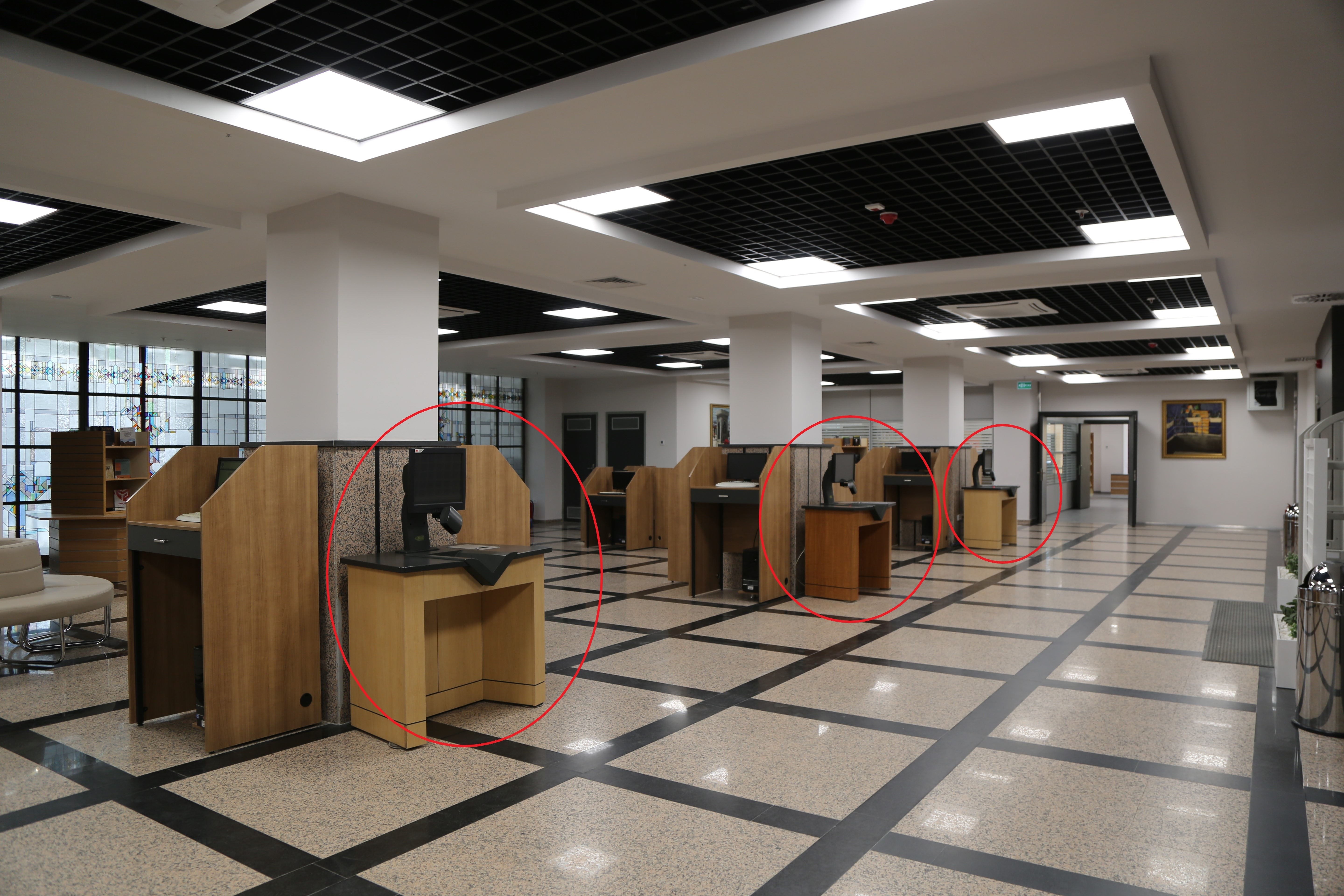
Self-Check Devices

To use the Self-Check device, you must first set a password for yourself in the “User Services” section on the library website.
  • Borrowing a Book

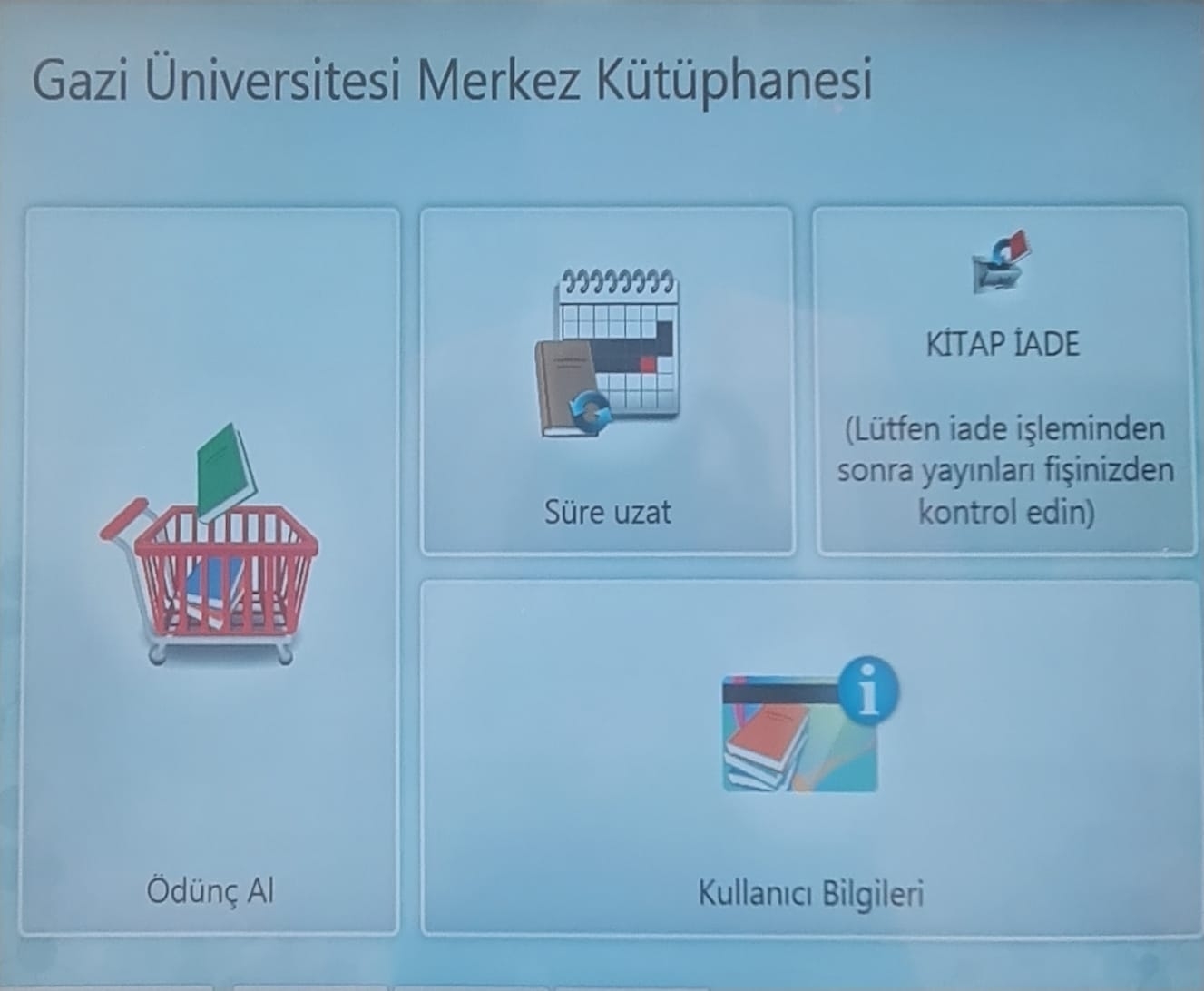
Self Check

To borrow a book, click the “Borrow" icon.

Self Check 1

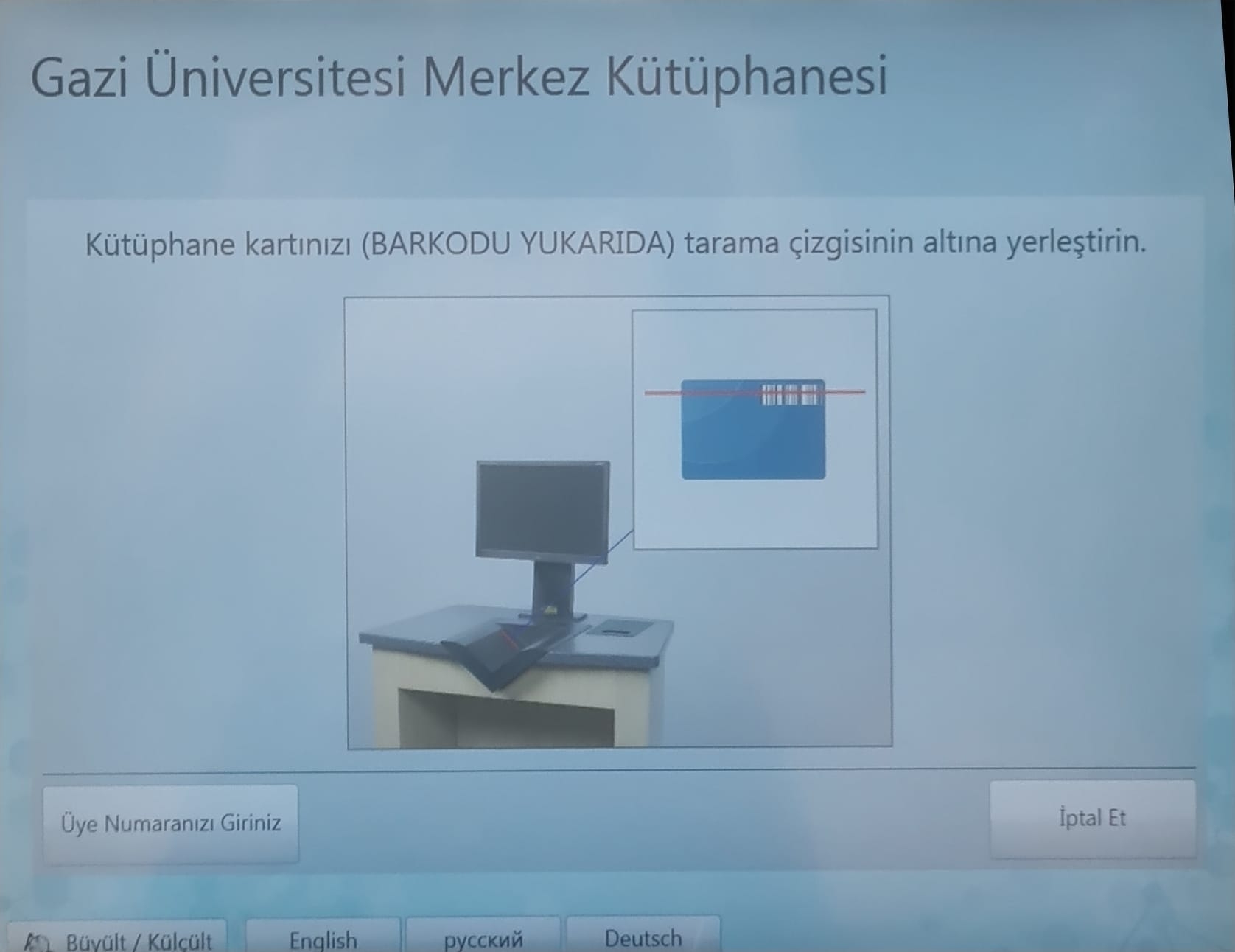
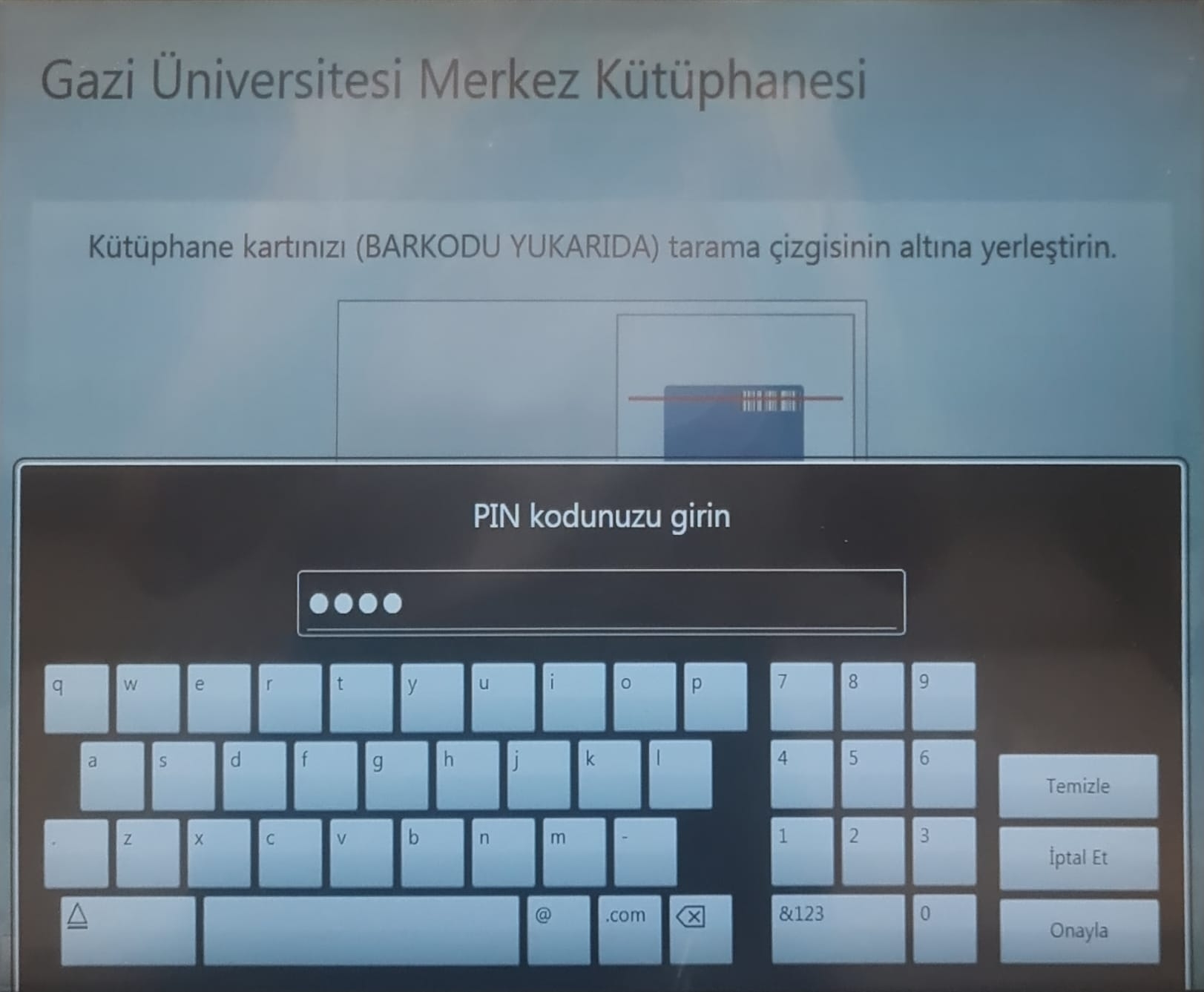
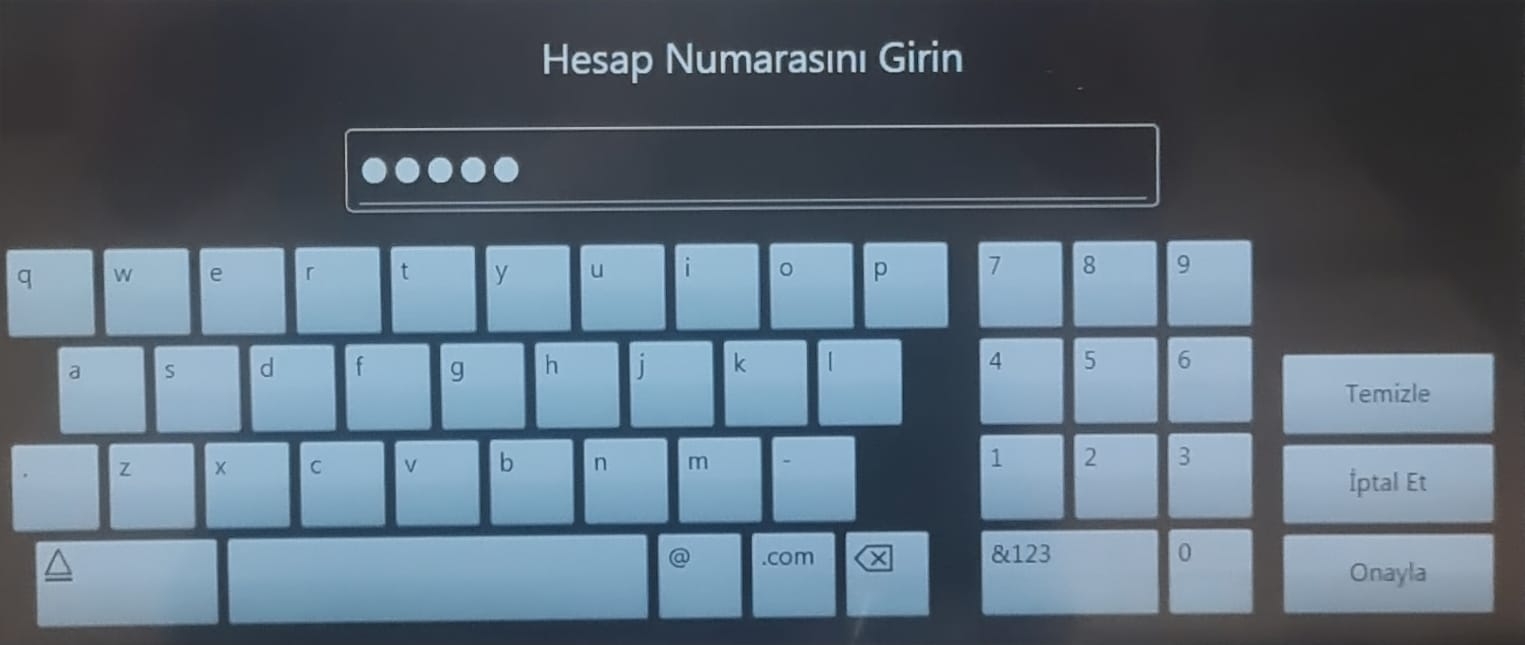
Enter either your national ID number or your student number as your username, along with the password you set in the “User Services” section.

Self Check 2

Self Check 3

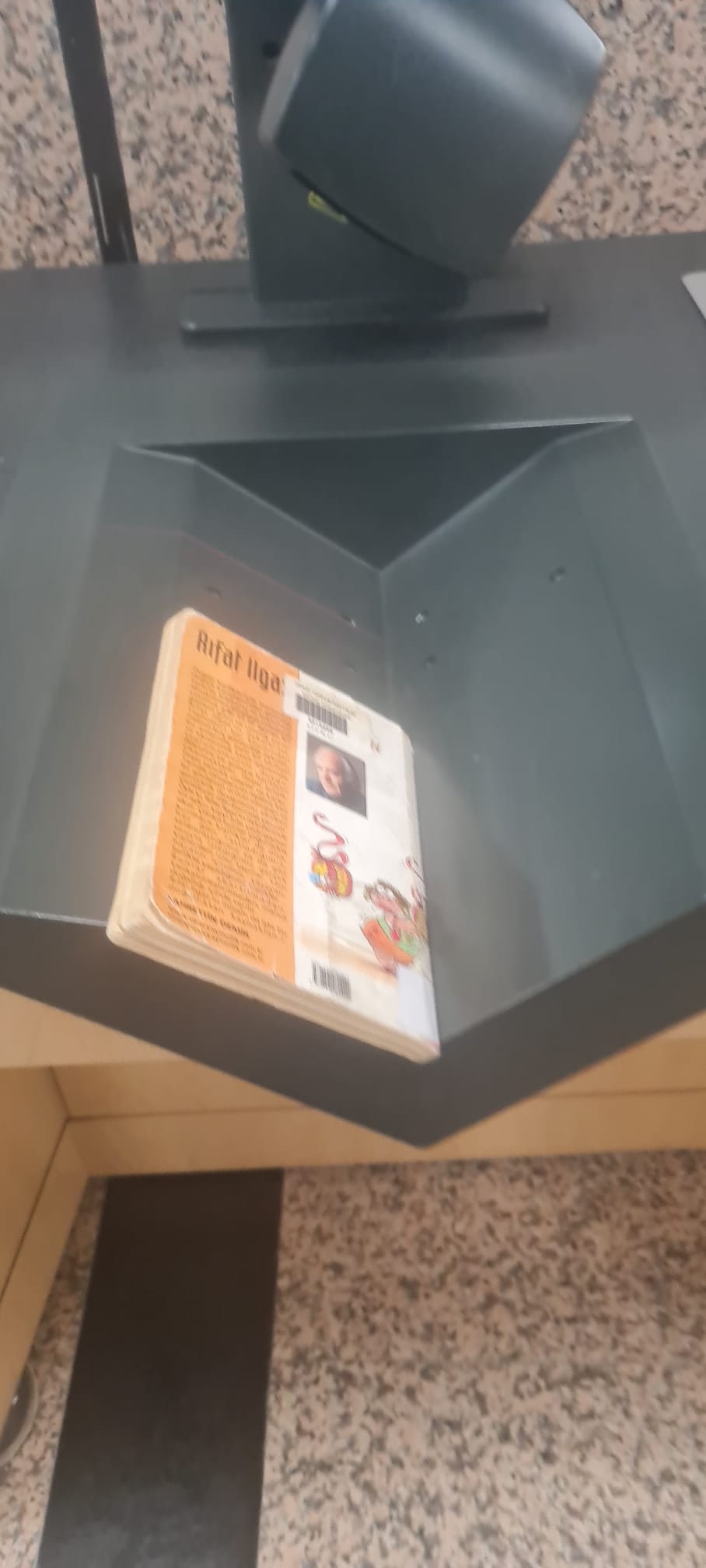
Place your book in the “V”-shaped tray with the spine down and the back cover facing up.

Self Check 4

Slide the book's barcode so that the barcode reader can read it.

Self Check 5

Self Check 6

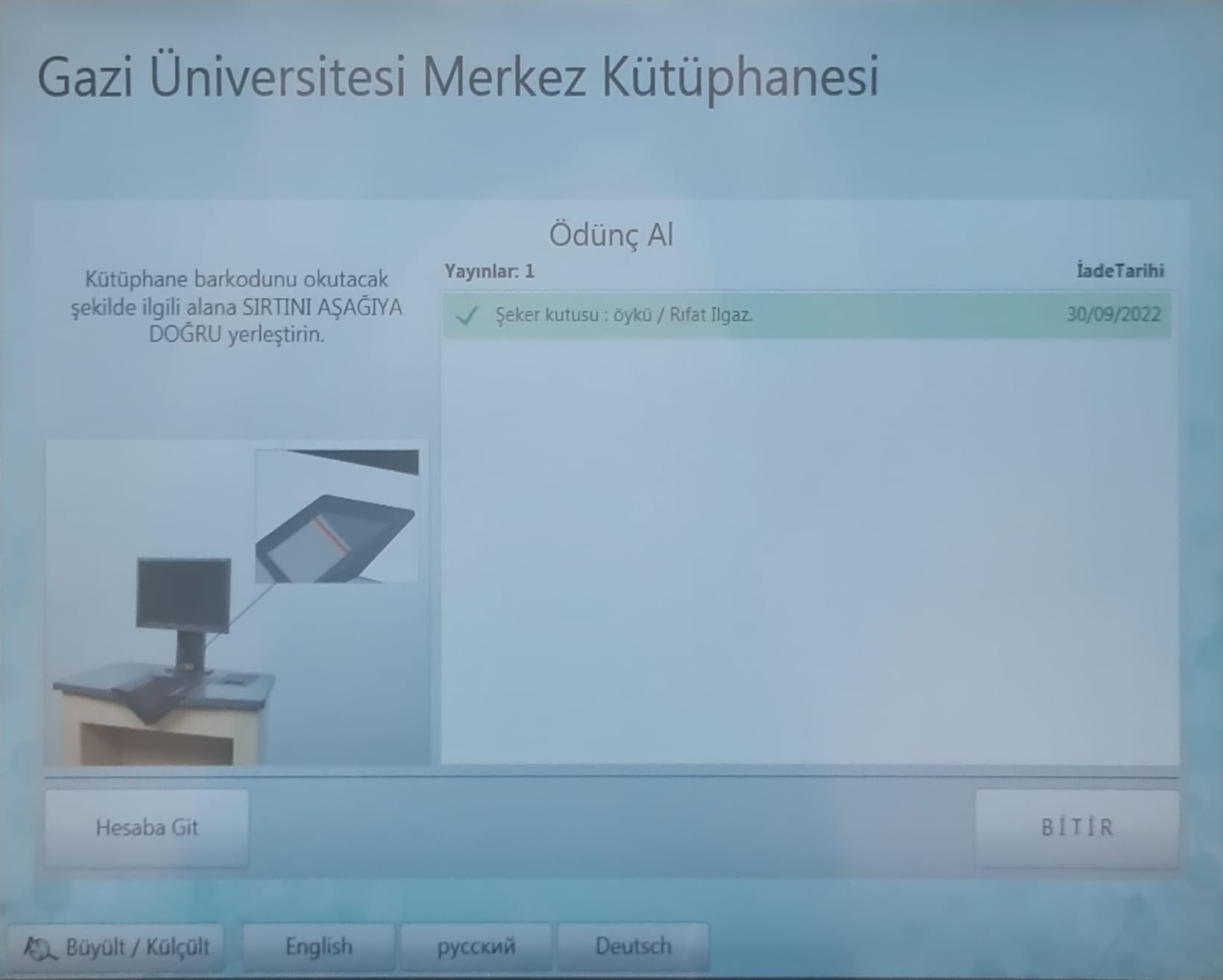
Please wait for the confirmation sound from the barcode reader. When you hear the sound, click the “Finish” button. The book title appearing in green on the screen indicates that the borrowing process has been completed.

Self Check 7

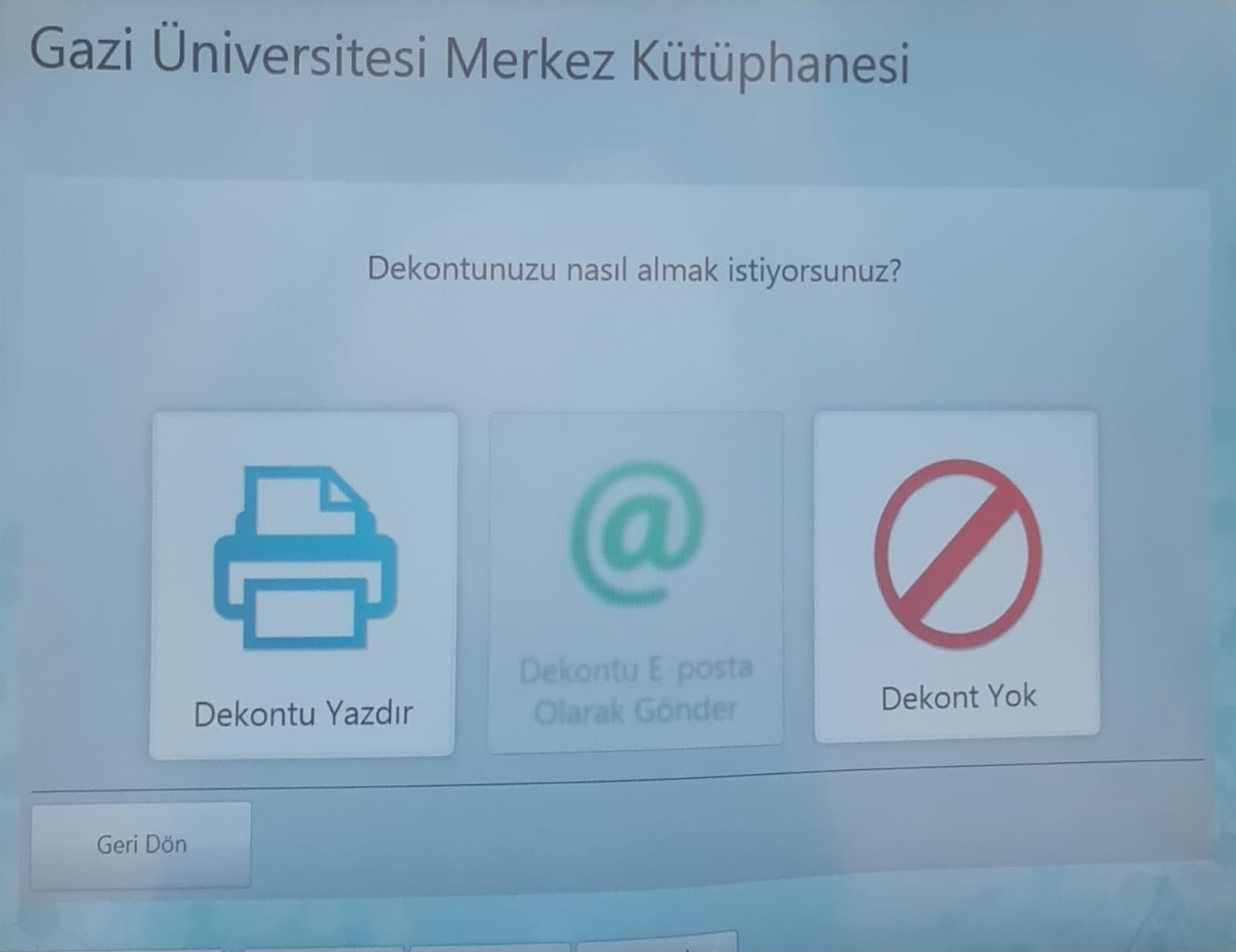
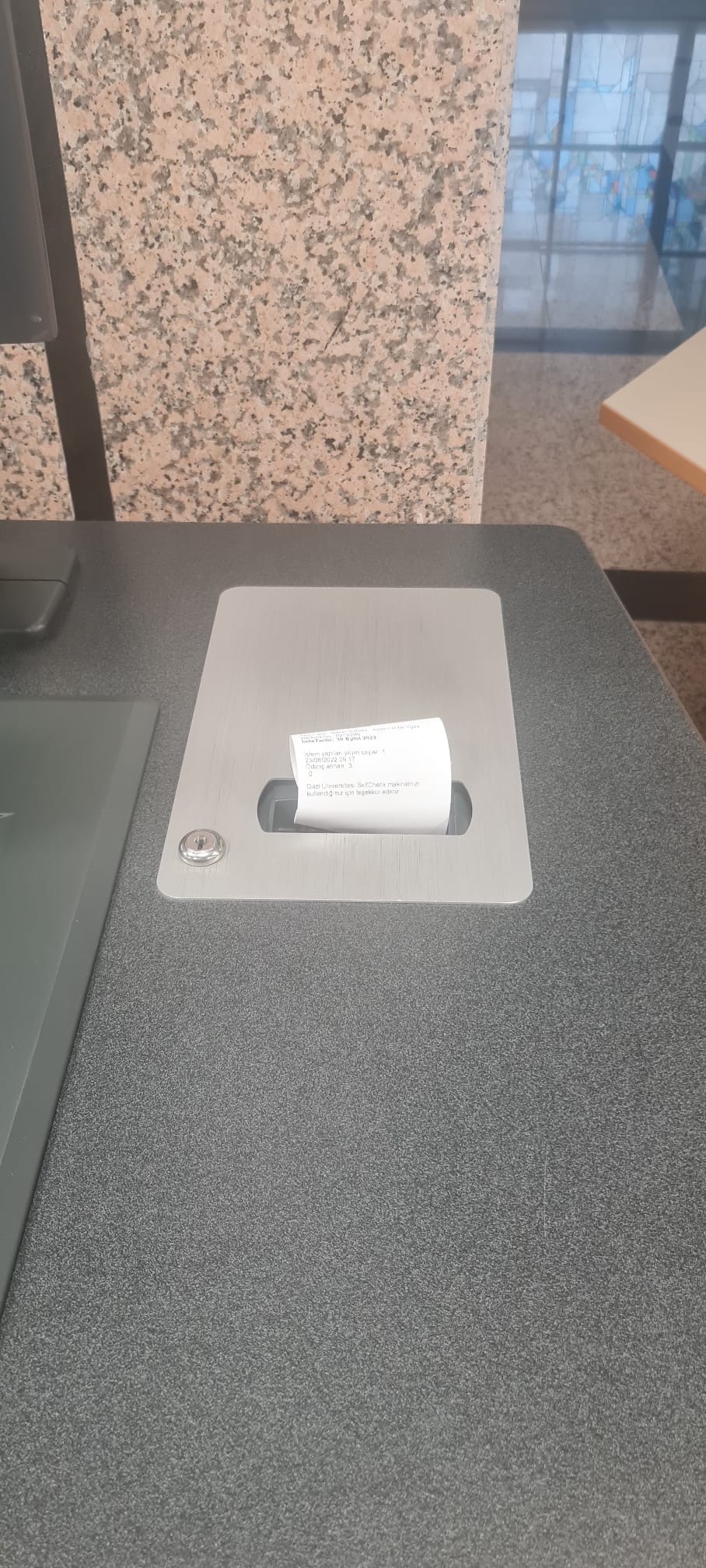
You can print the receipt for the book you borrowed or have it sent to your account by e-mail. You may need to keep this receipt for a while to document the accuracy of your transactions.

Self Check 8

  • Returning

Self Check Return

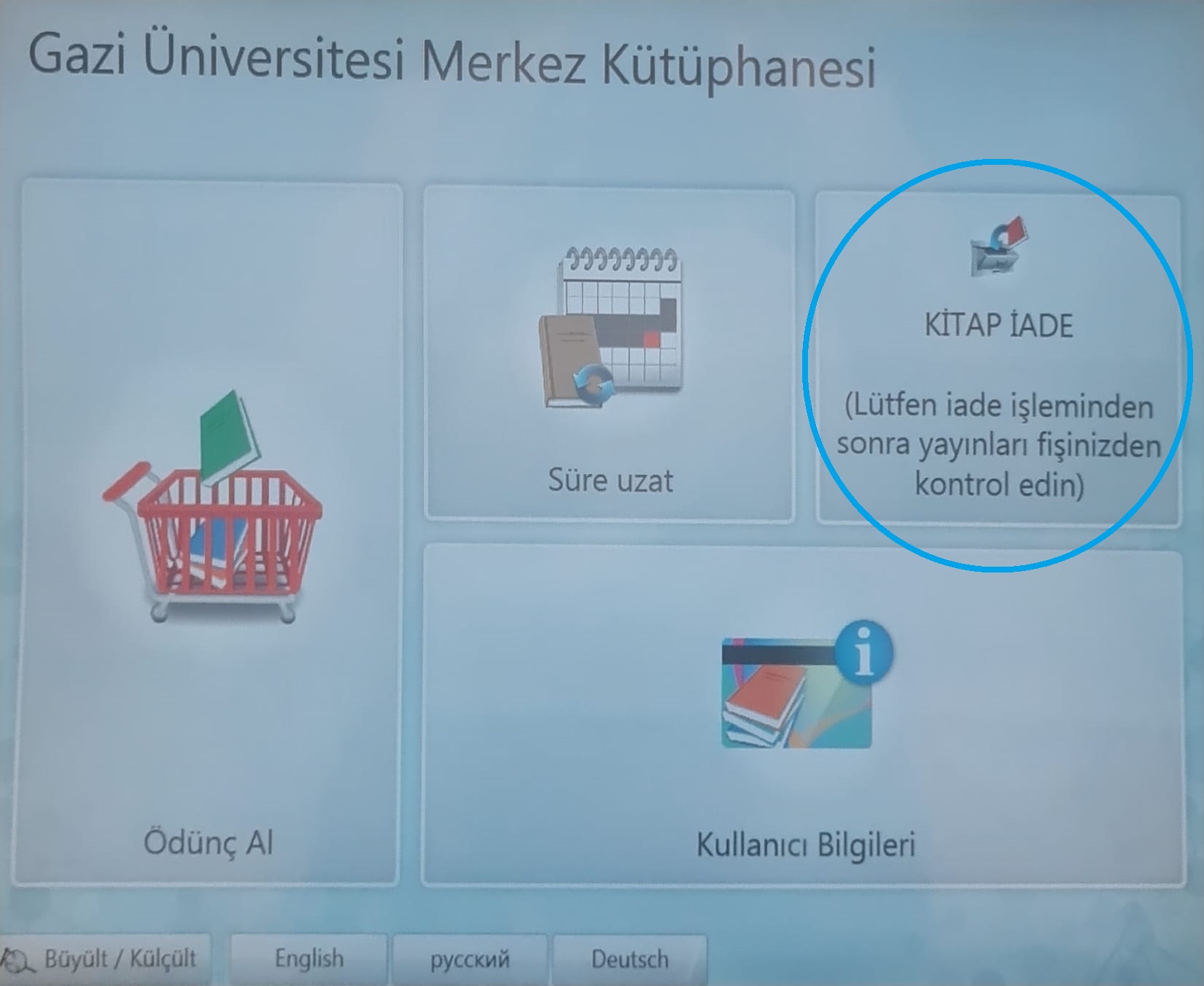
Click the “Return Book” icon.

Self Check Return 1

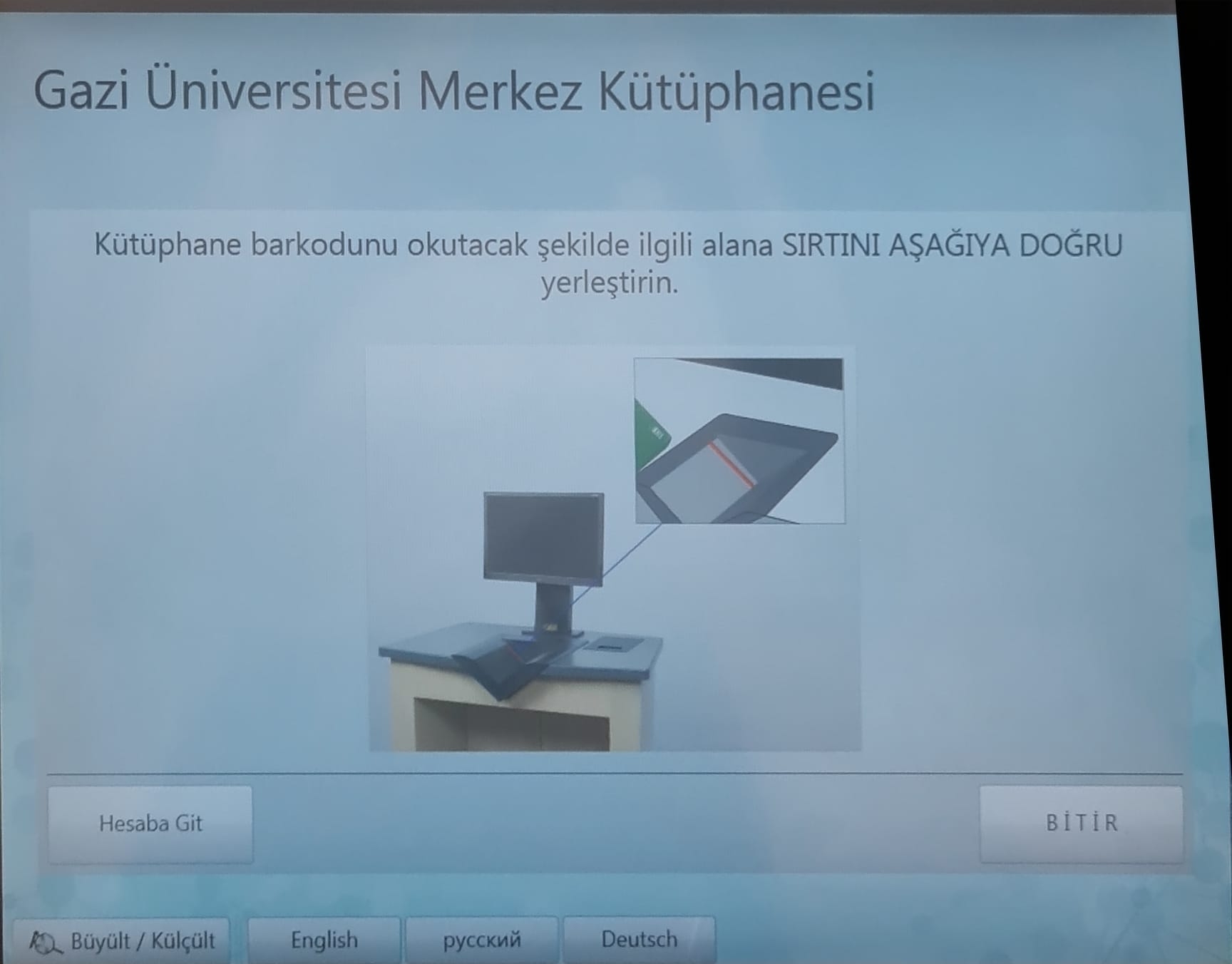
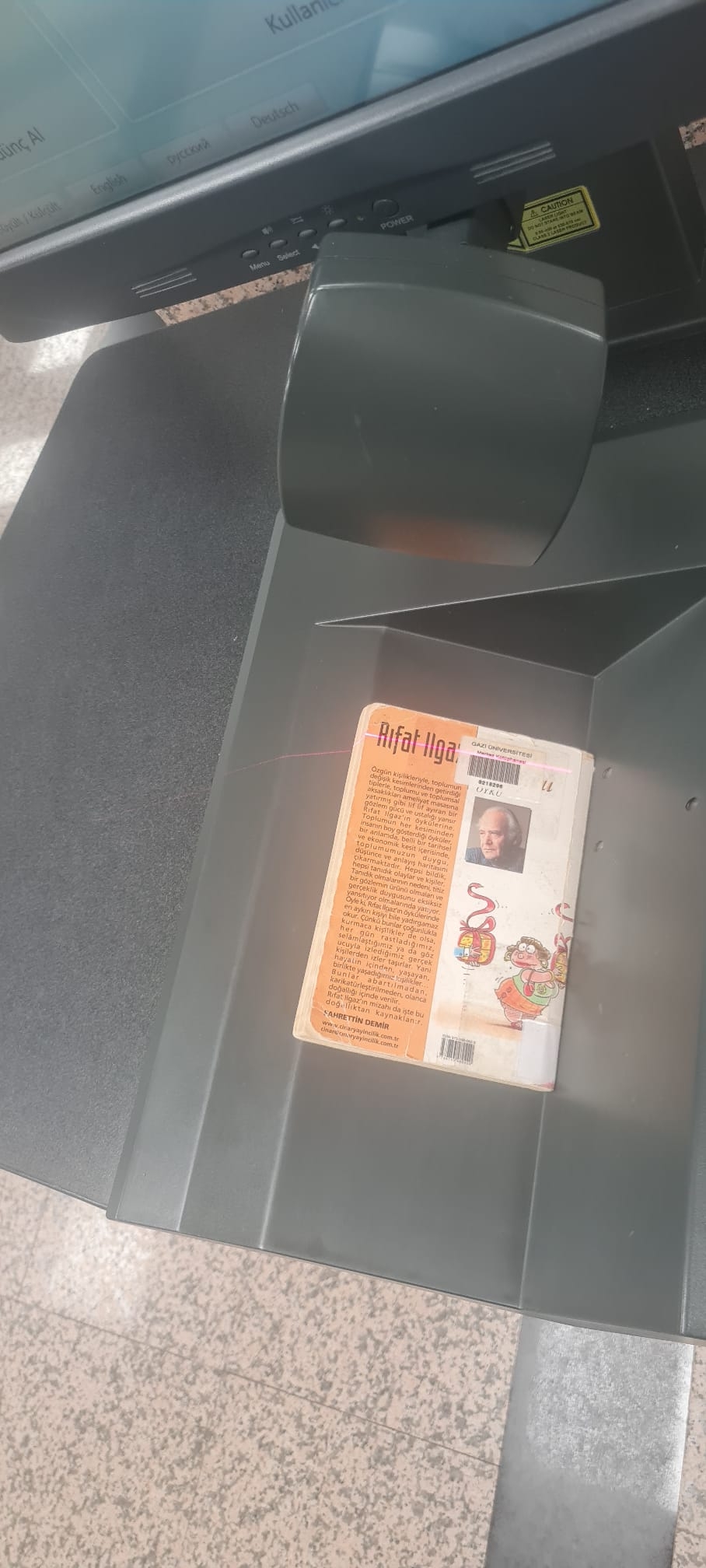
Place your book in the “V”-shaped tray with the spine down and the back cover facing up.

Self Check Return 2

Slide the book's barcode so that the barcode reader can read it.

Self Check Return 3

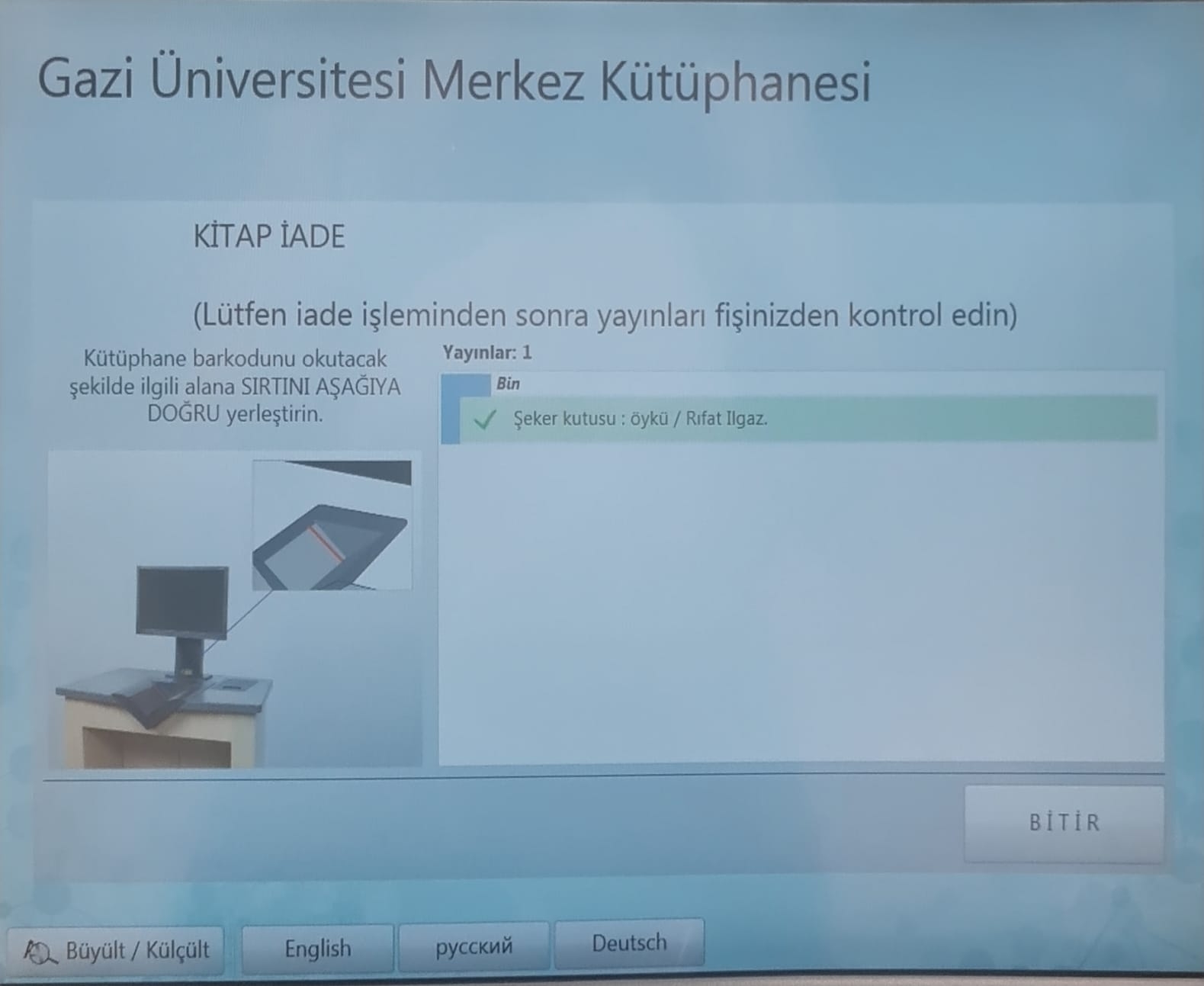
Please wait for the confirmation sound from the barcode reader. When you hear the sound, click the “Finish” button. (The book title appearing in green on the screen indicates that the return process has been completed.)

Self Check Return 4

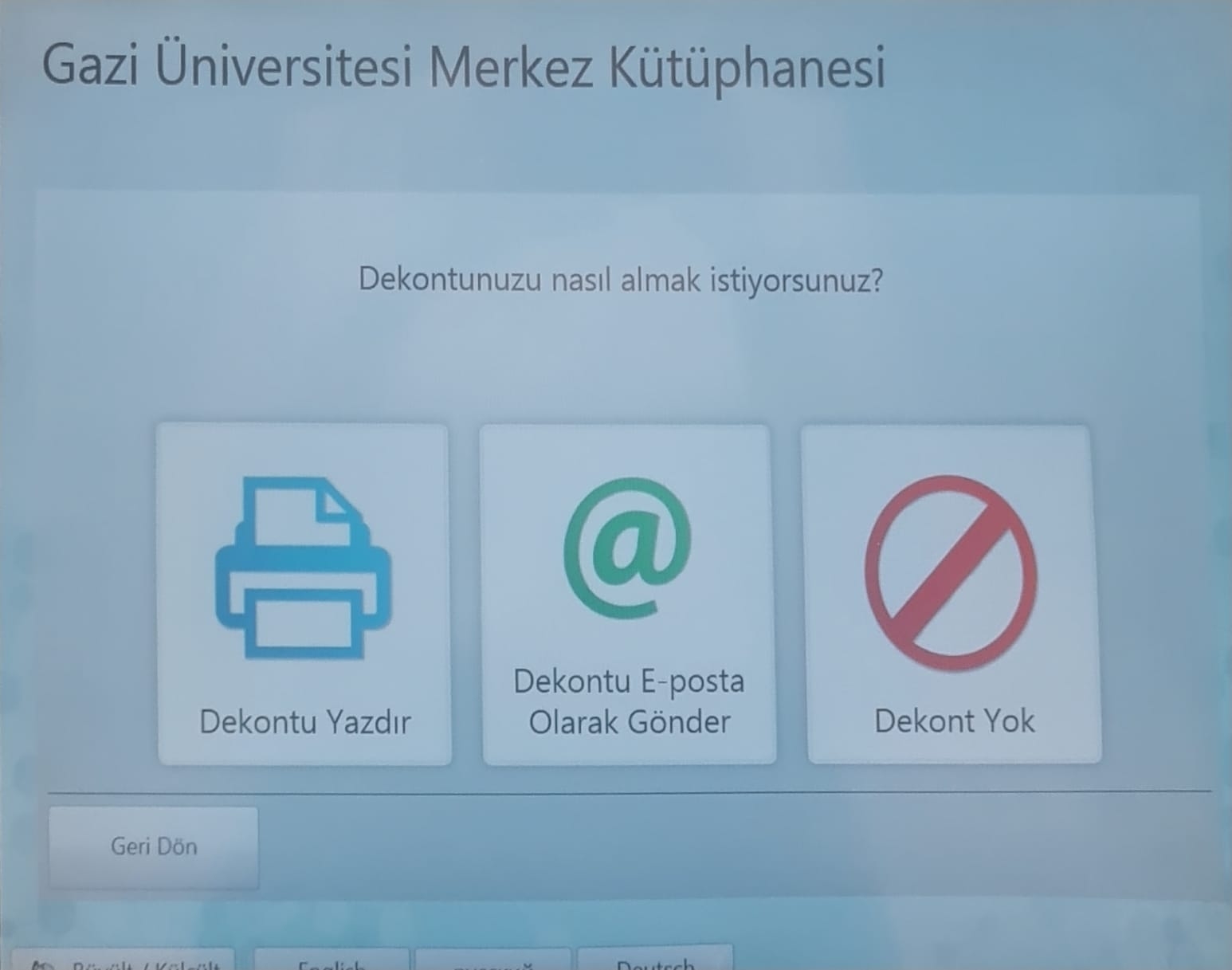
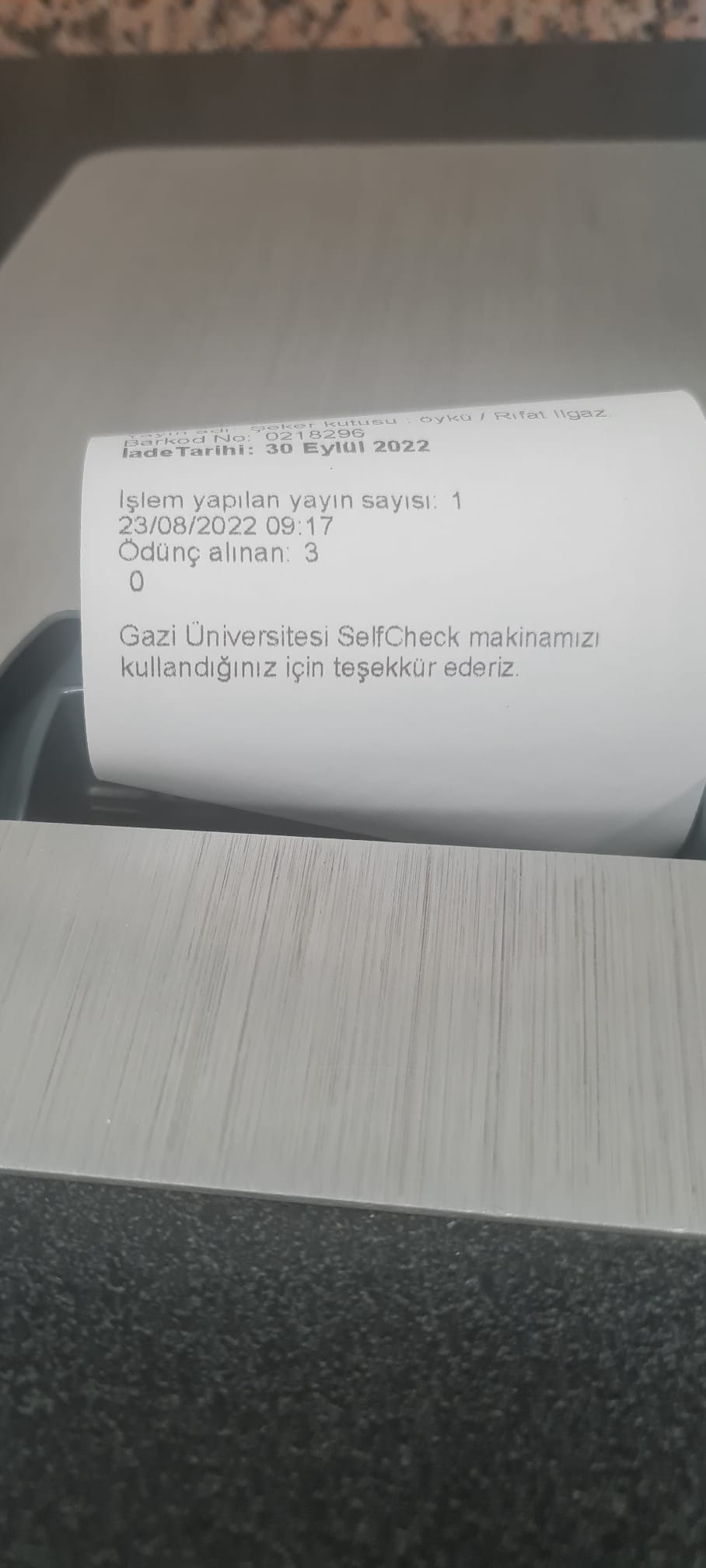
You can print the receipt for the book you returned or have it sent to your account by e-mail. You may need to keep this receipt for a while to document the accuracy of your transactions.

Self Check Return 5

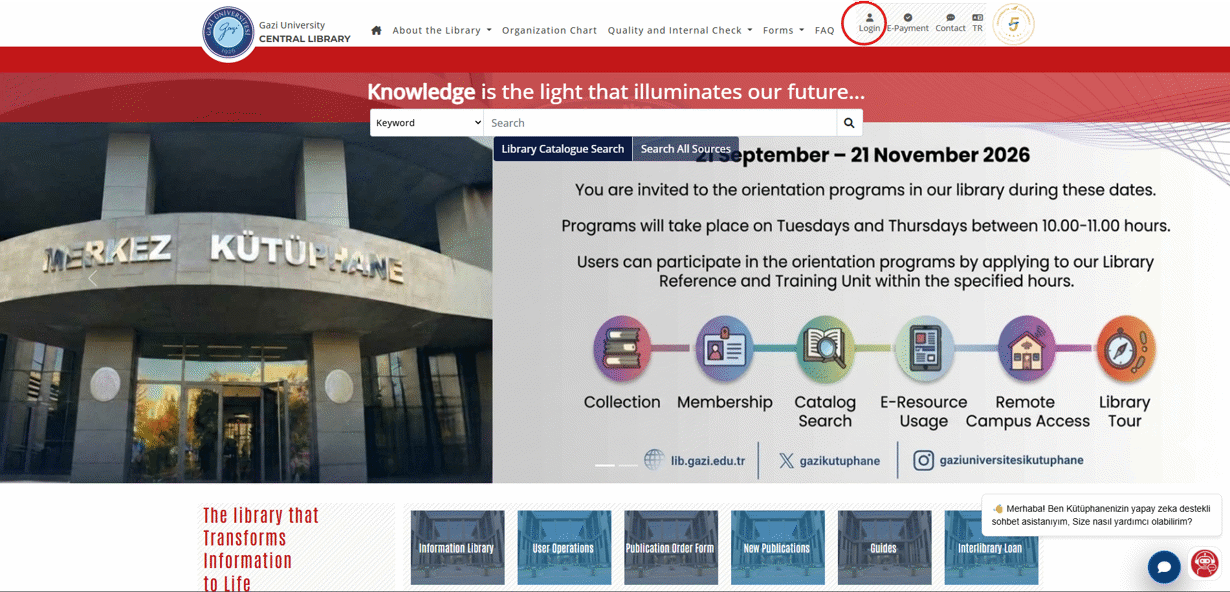
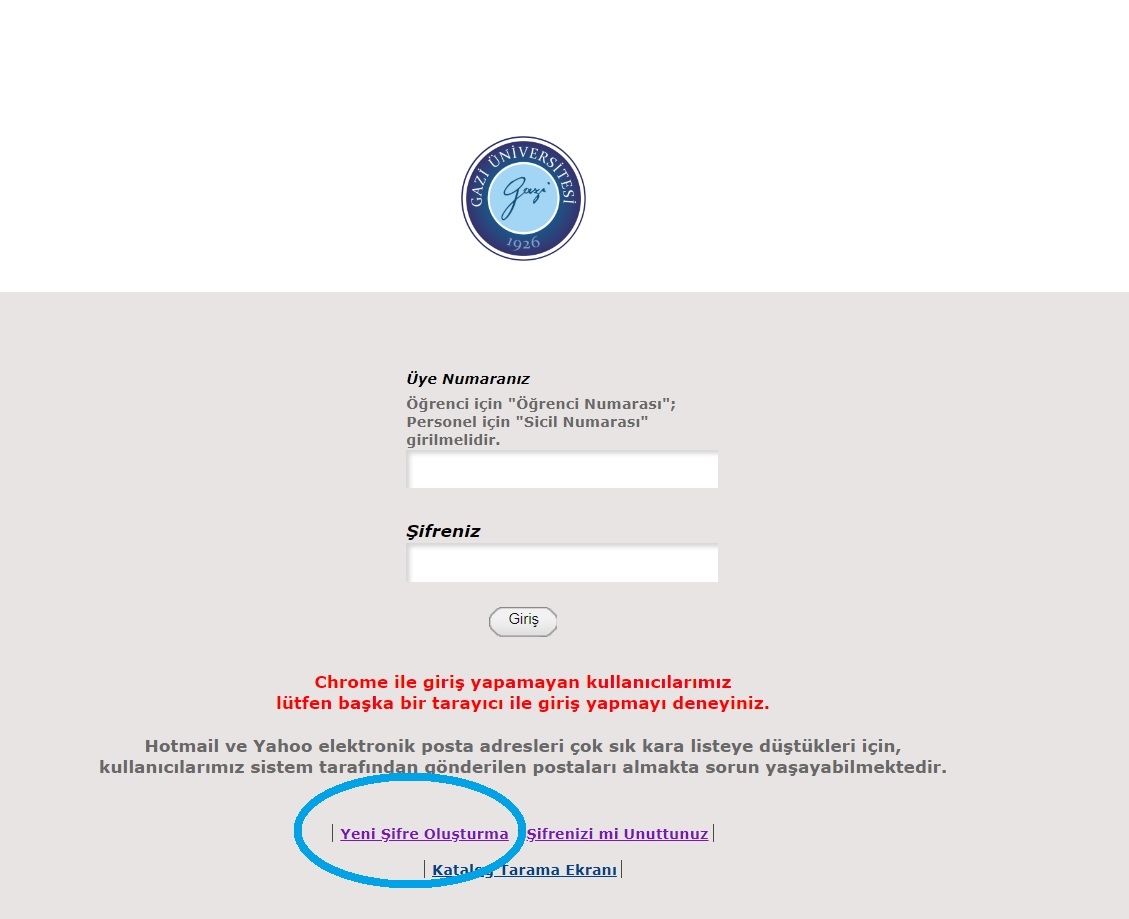
Click the "Login" icon on our website.

LibraryLogin-1

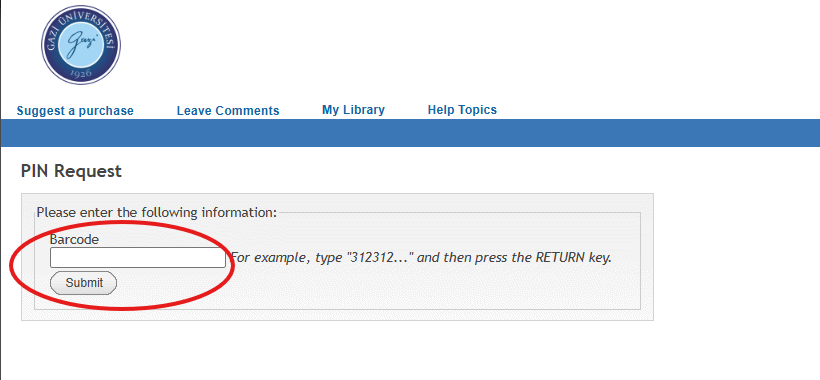
Click the link for creating a new password.

User Services

Your member number is your student number for students and your registry number for staff. A registration link will be sent to the e-mail address you used when registering at our university.

LibraryPinRequest-1

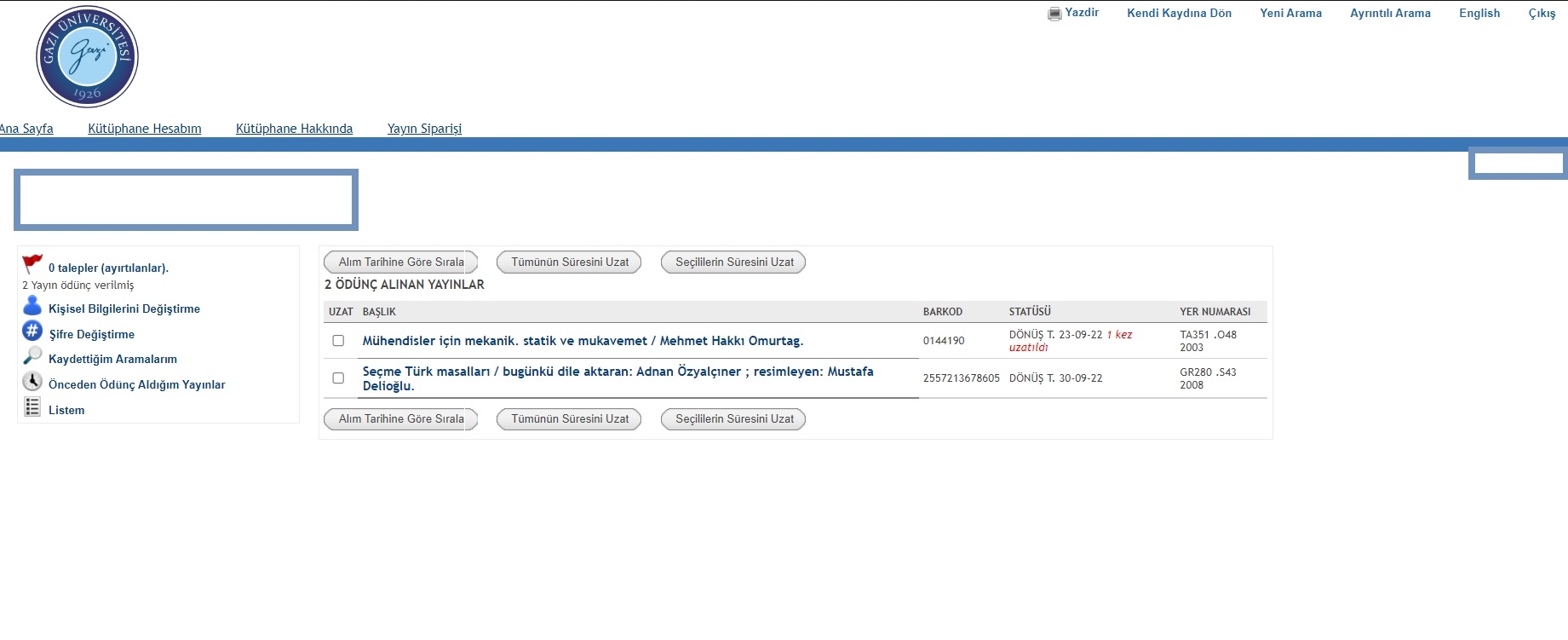
Using the User Services page, you can change your personal information and password, view overdue book fines, save your searches, see the books you have borrowed, and renew the loan period of your books if the due date has not passed. Through the system;
  • Associate and undergraduate students and administrative staff can renew 4 times,
  • Master's and doctoral students can renew 5 times,
  • Academic staff can renew 10 times.

User Services

You need to return your book to the “Circulation Desk” as soon as possible. A daily late fine is applied to publications that are not returned on time and whose loan period has not been renewed. The automation system automatically calculates the fine by multiplying the number of overdue books, the number of days they are overdue, and the daily late fee.

If the books have not been reserved by another reader, you can renew them from the “User Services” section on the Library website, by coming to the Library and visiting the “Circulation Desk,” or via “Self-Check.” For detailed information on this subject, you can call 0312 202 29 40 - 0312 202 29 41.

You need to click the E-Payment icon and check your debt using your national ID number. Library debts can only be paid by credit card. You can reach the payment page.
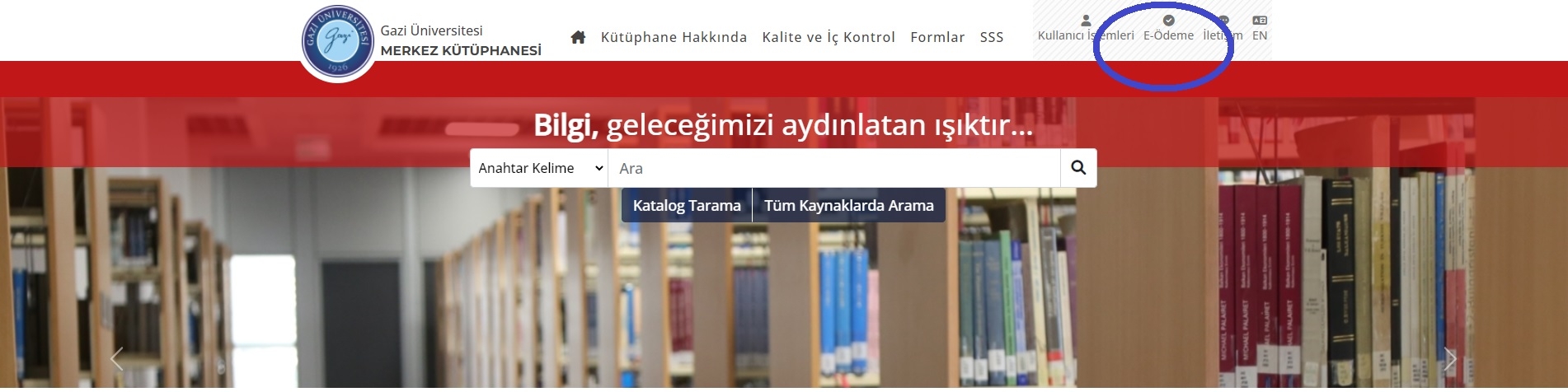
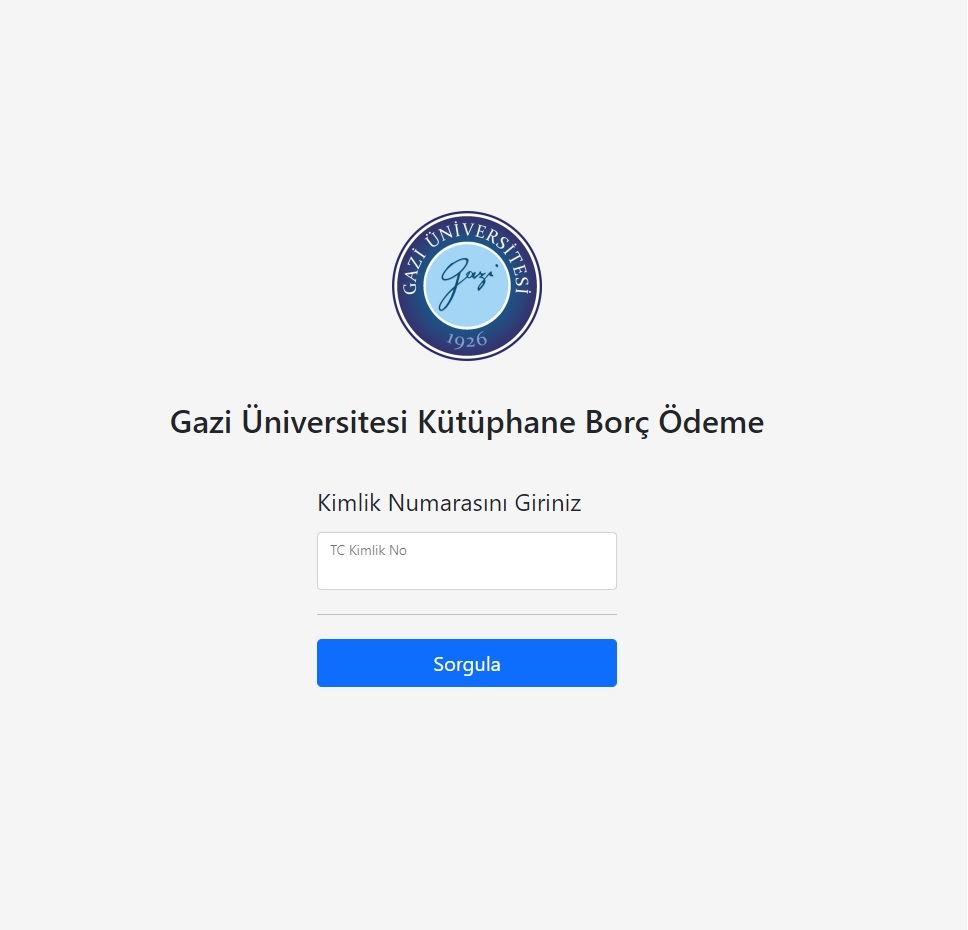
E-payment

E-payment

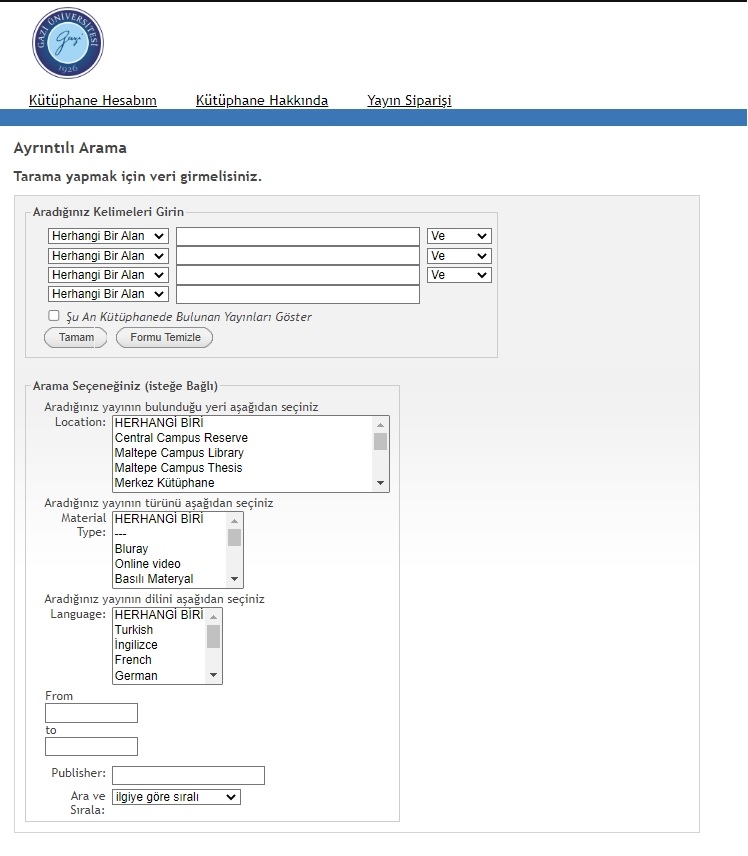
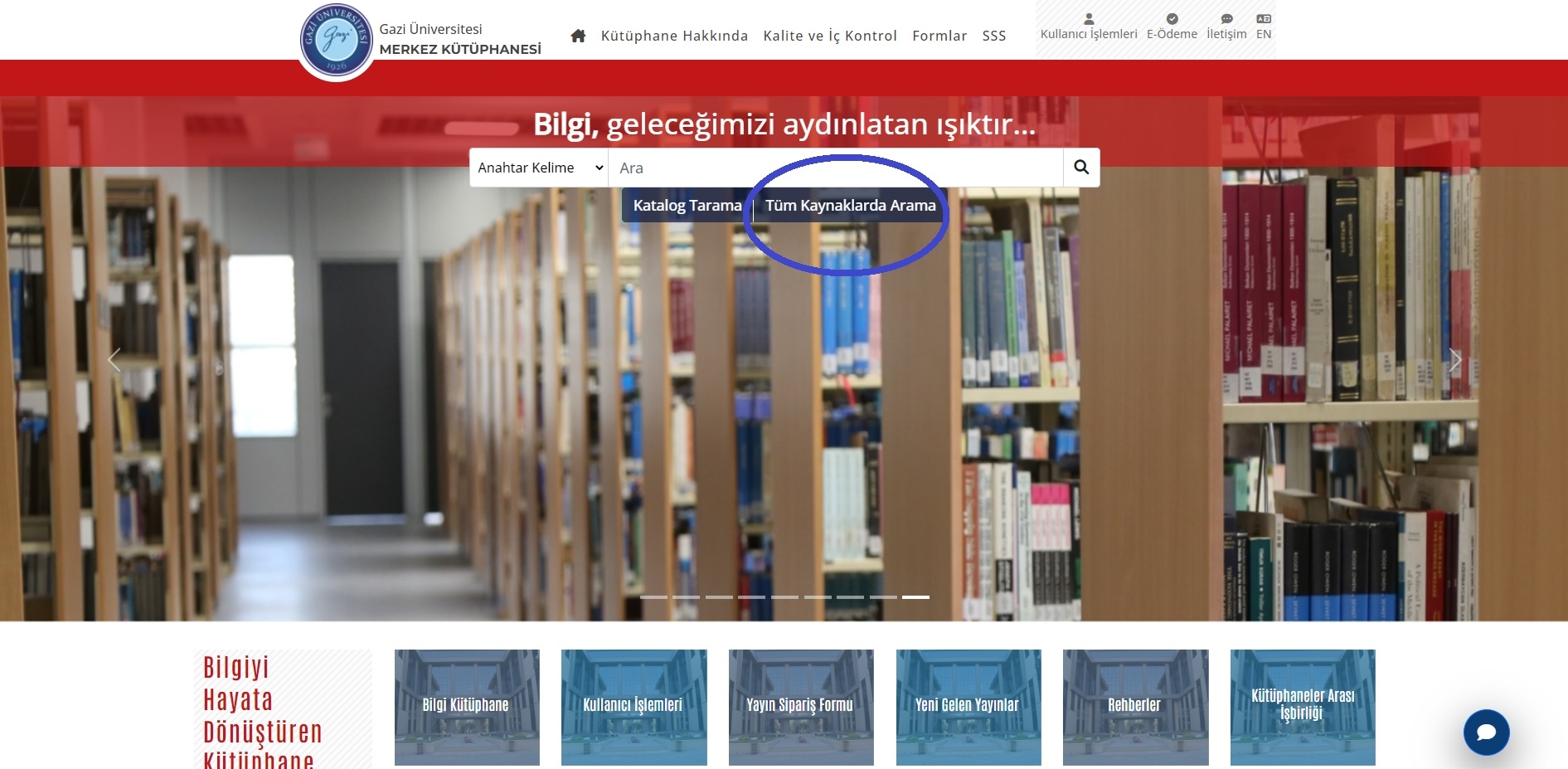
You can search using the search computers at the entrance of our Library or via the “Catalog Search” and/or “Search All Resources” tabs on our Library website.
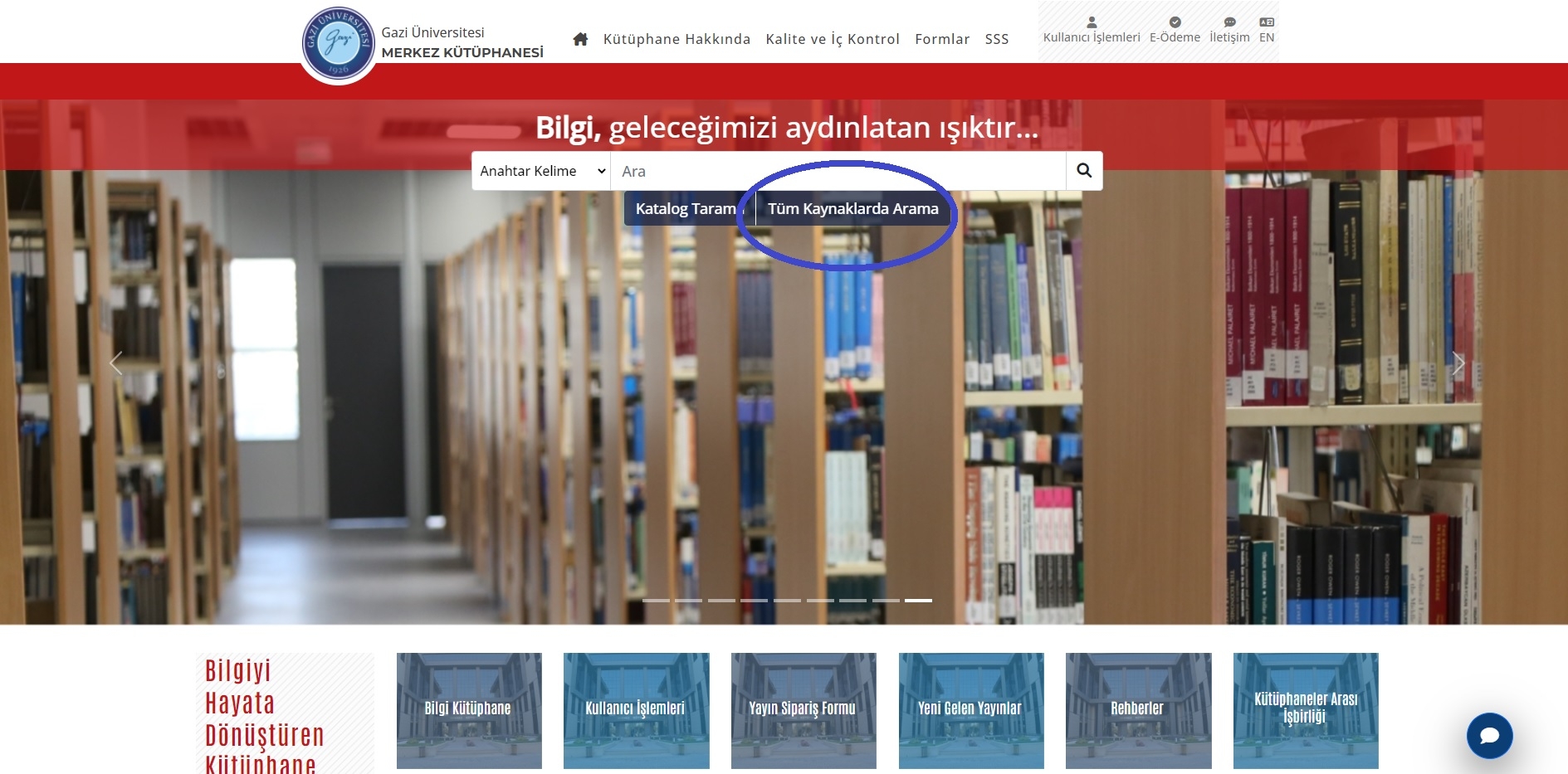
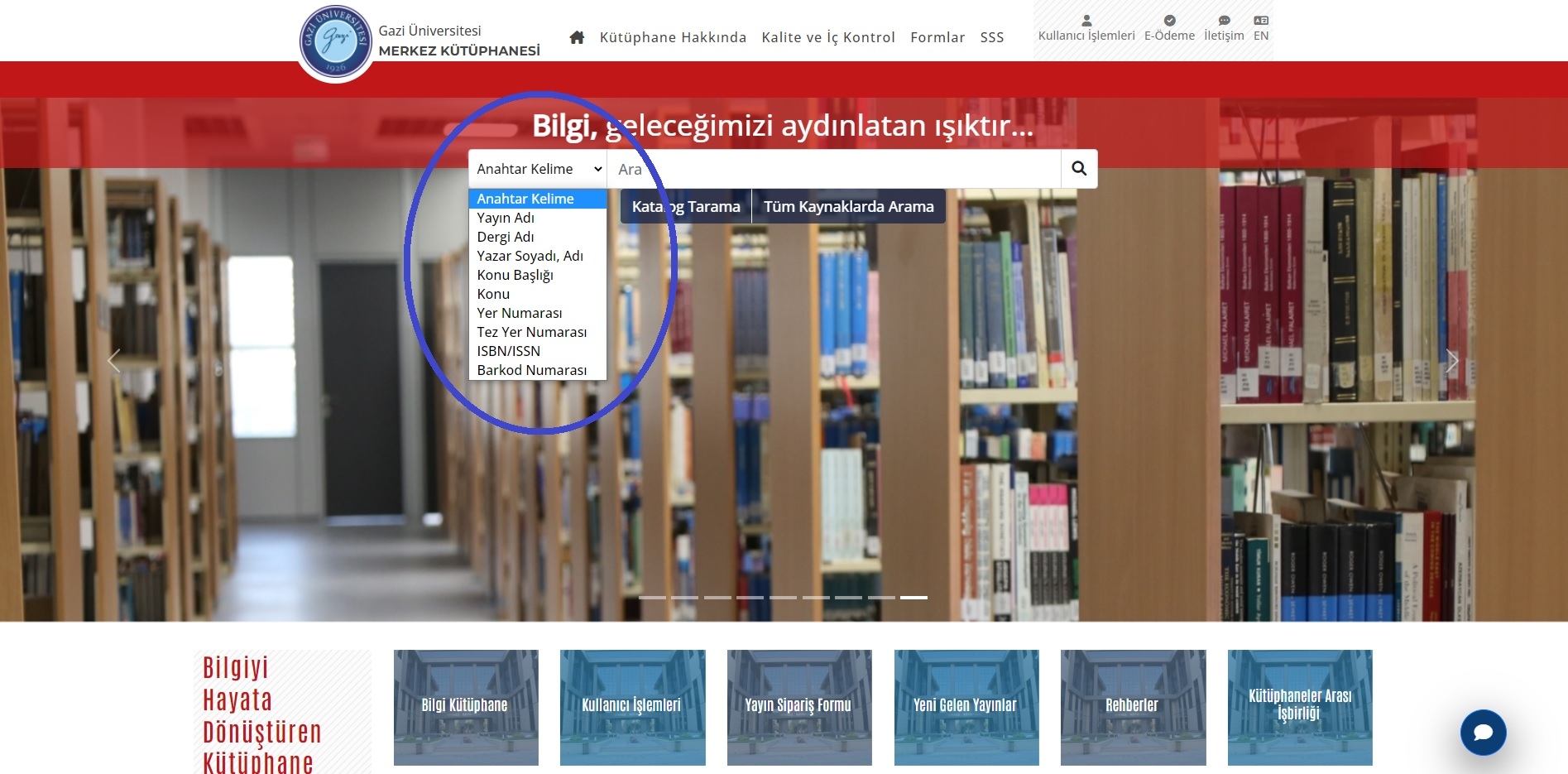
Book search

Searches can be made in various fields. When searching by author, the author's surname must be entered first.

Book search 1

According to the search results, books whose call numbers begin with A - N are on the 2nd Floor of the Library; books whose call numbers begin with P - Z and the special art collection are on the 3rd Floor; printed periodicals are on the 1st Floor; reference resources are in the Reference Section on the entrance floor; the collection for the visually impaired is on the entrance floor; and the multimedia (audiovisual materials) collection is on the basement floor (-1) of the Library. For theses, you can get help from the Reader Services Unit.

Book search 2

Borrowing is done with a Gazi University ID or a national ID card.
  • Academic Staff can borrow 20 books for 2 months,
  • Doctoral students can borrow 10 books for 1 month,
  • Master's students can borrow 8 books for 1 month,
  • Undergraduate and Associate students can borrow 5 books for 15 days,
  • Administrative Staff can borrow 6 books for 1 month,
  • Those working in Permanent Worker status (cleaning and security staff) can borrow 6 books for 1 month.
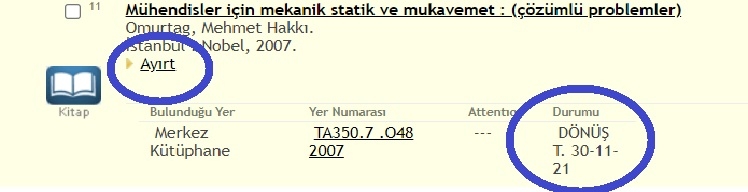
If the book has been borrowed by someone else, you can place a reservation using the search terminals at the library entrance and/or our Library website. To place a reservation, the “Status” field below the book's record must show “Due Date.” Reservations cannot be placed on books marked “Available for Loan.”

Book reservation

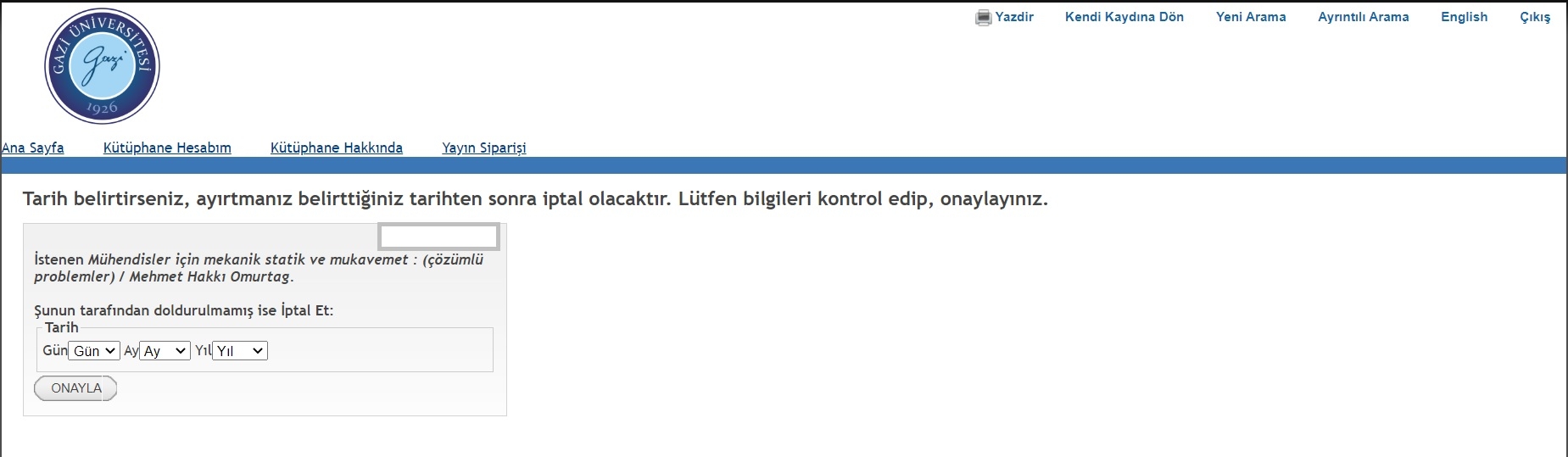
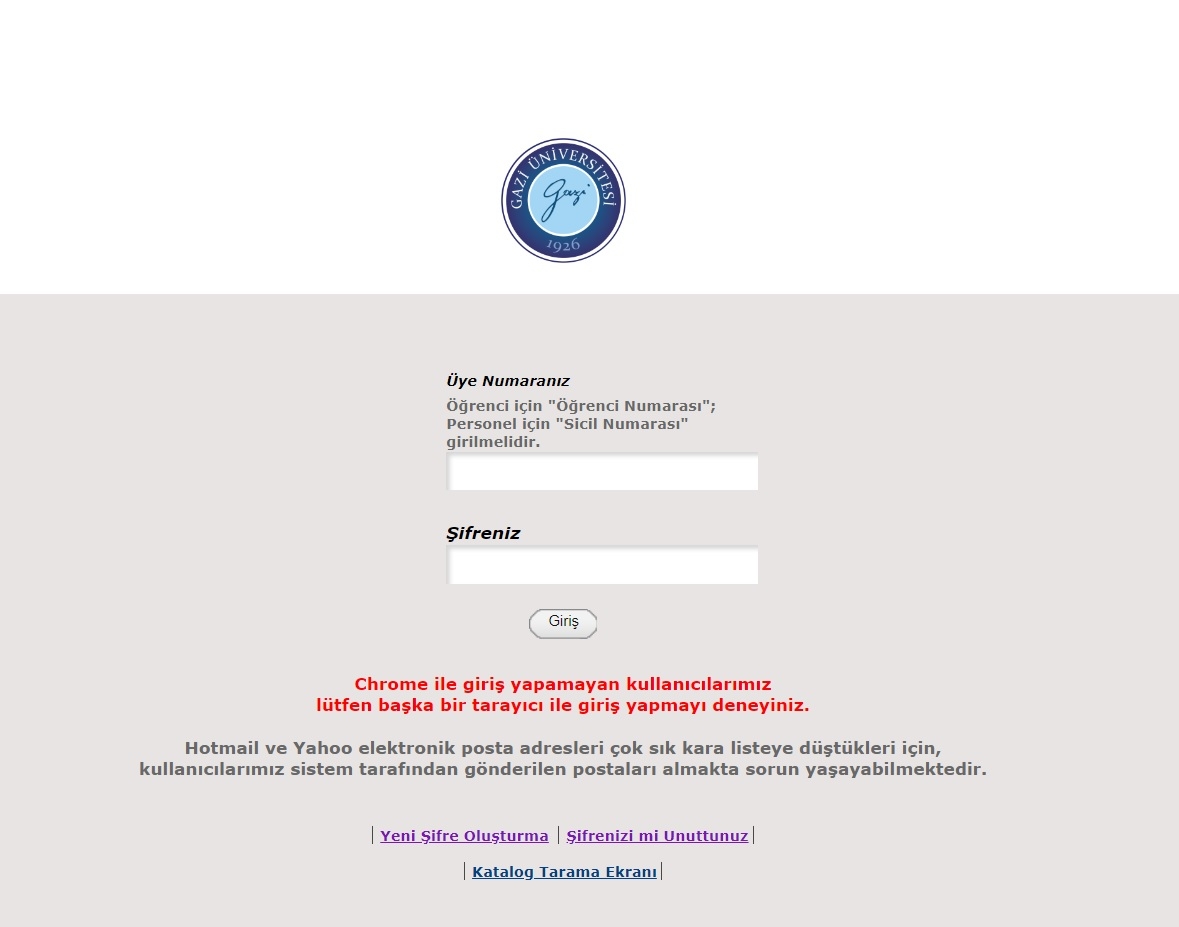
To reserve the book, you need to click the “ link. The link will direct you to the “User Services” page.

Book reservation 1

Log in to the system with your student number / staff registry number and your password.

Book reservation 2

Set the reservation date and click the “Confirm” button. After the reserved book is returned, it will be held for you at the Circulation Unit for 3 days.

Current journals are located in the 1st floor current periodicals hall of our Library. To find out whether the journals you are looking for are available in the Library, you can use the catalog search link on the website. On the right side of the floor, journals on science and health sciences are arranged alphabetically by journal title, and on the left side, journals on social sciences. The journal collection prior to 1987 is in the archive. To access journals in the archive, you can ask the 1st floor reference staff for help.

Theses are located in the archive section on the -1 floor of our Library. You can access theses through the Library catalog. After typing the subject heading you are looking for in the catalog, you can search by adding the word “thesis.” After noting the call number of the resulting records, apply to the Circulation and Interlibrary Cooperation Unit. In addition, theses with full-text access permission can be reached via the “Gazi E-Theses” and/or “Open Access” sections on our Library website.

The resources listed below can be used inside our library building but cannot be taken out of the building.
  • Reference resources,
  • Periodicals (Journals),
  • Theses,
  • Special collections,
  • Audiovisual materials,

Our library has audiobooks, scanned books, and books written in Braille, and for catalog searches you can get support by contacting the Visually Impaired Unit. You can reach the Visually Impaired Unit at 0312 202 29 15.

The “Interlibrary Loan” service provides information resources that are needed by our University's academic staff but are not available in the Library, by loan or photocopy from libraries in Turkey (KİTS) and abroad (ILL).

You can access electronic resources by clicking the “Search All Resources” icon on our Library website or by searching the databases one by one on the “Electronic Resources” page.

Electronic Resource

With the “Search All Resources” tab, you can search most of the databases that our Library subscribes to / provides at the same time. As a result of a search in the “Search All Resources” tab, you can see the bibliographic records of printed / electronic journals, books, and theses related to your research topic, and access the full texts of electronic resources using the “Full Text Online” link under the records. You can search in different languages such as Turkish, English, German, French, etc.; thus you can view publications in the language you want to reach. Since most of the databases our University subscribes to are in foreign languages, you can access a greater number of foreign resources.

You can access the "E-Mail Request System" of the Department of Information Technology and request a student/staff e-mail address. You can configure the settings of the tools you will use to access your e-mail by following the steps here.

To access electronic resources remotely, you need to authenticate with OpenAthens using your e-Devlet password. Click here to authenticate with OpenAthens.
To download the programs provided by our University, you can go to the proxy settings page and, by following the steps indicated, configure your off-campus access settings so that your personal computer obtains a Gazi IP.

Members of our University can set up wireless network connections on their iOS, Android, or Windows devices by using the links below and following the steps indicated. Users who are not members of our University, have external user status and wish to use our Library, and come from institutions that are eduroam members can set up wireless network connections on their iOS, Android, or Windows devices by using the link below and following the steps indicated. They can connect to our University's network with the username and password they use to connect to the network at their own institutions.

You can access electronic journals through "Electronic Journals" under the "Electronic Resources" heading on the Library website. If you wish, you can also search by subject via this link.

You can access electronic book databases through the user guides.

You can access electronic articles through “Electronic Articles” under the “Electronic Resources” heading on the Library website.

You can access international “Electronic Thesis Databases” together with their user guides. You can access electronic theses prepared by students of our University here.

You can access all the databases our Library subscribes to, together with their user guides, here. If you are working on a thesis, article, or book, after searching the databases you can organize the literature you will work on with the help of reference management tools prepared by various companies. For detailed information and to review the desktop versions, please click here.
  • ENDNOTE EndNote is a reference management tool that can help you in the scientific research, article writing, and publishing process with many features such as writing theses / articles, citing, creating reference lists, formatting according to different journal / thesis formats, and suggesting journals in which you can publish.
  • Mendeley (Institutional Edition) Mendeley is a free reference manager and academic social network that helps you organize your research, collaborate with other researchers online, and discover the latest research.

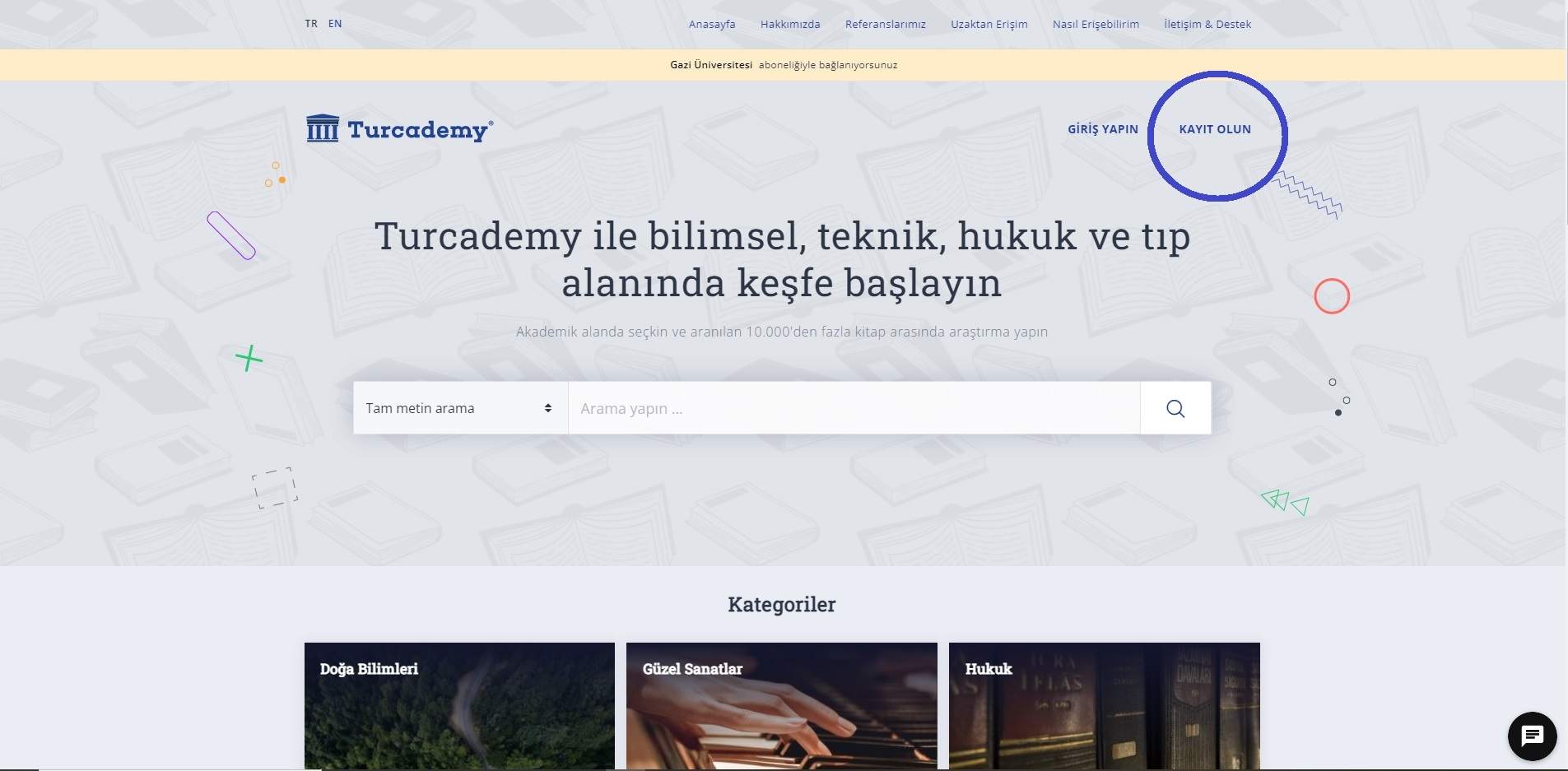
If the books you are looking for are in the Turcademy database, you first need to authenticate with OpenAthens on the Turcademy page, and then register with the database. Click the SIGN UP link.
Turcademy

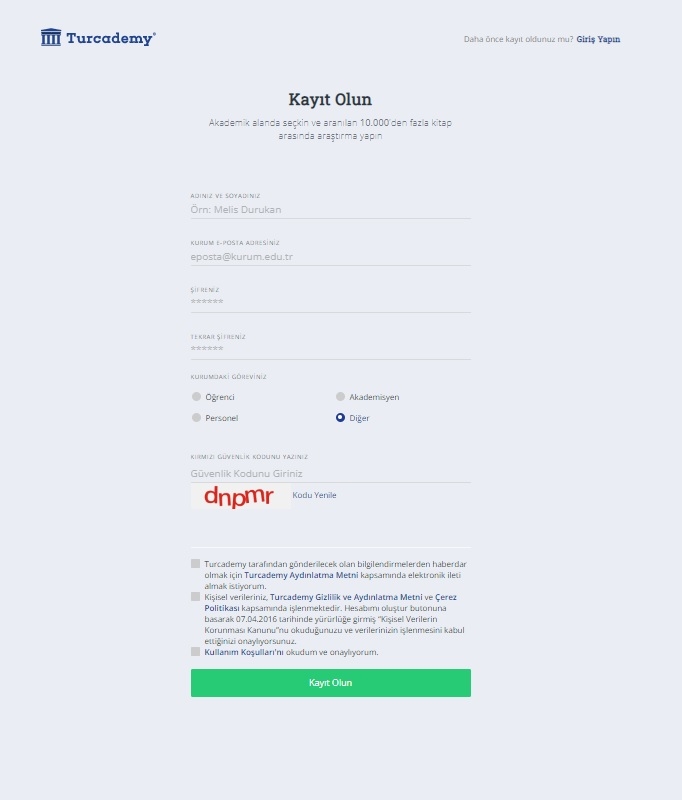
Create your registration by entering the requested information and your Gazi e-mail address.

Turcademy 1

An activation link will be sent to your Gazi e-mail. With this link, you will be granted access to all the books in the database. Books in the Turcademy database cannot be downloaded. However, by authenticating with OpenAthens, you can read any book you wish 24/7.

Our library actively offers 3 plagiarism (similarity) programs:
  • iThenticate: A plagiarism program for similarities found in articles and article drafts, which can only be used by our academic staff who have completed their doctorate.
  • Turnitin: A plagiarism program for similarities found in theses, student assignments, and projects, which can only be used by thesis advisors.
  • İntihal.net: A plagiarism program for detecting many types of plagiarism, which can be used by all of our students and academic staff.

For detailed information about plagiarism programs and their use, click here.

Graduates of Gazi University who show an alumni card can use the library PHYSICALLY.

When preparing a thesis, article, conference paper, project, or assignment, it is recommended that you use a reference management program. These programs allow you to collect and organize the sources you find during your literature review in one place and to automatically create your bibliography by adding citations within the text via Word. They also help you apply your chosen citation style (APA, Vancouver, etc.) consistently throughout the entire document.

The Gazi University Central Library supports its users in this process and provides access to the EndNote and Mendeley programs.

You can use these databases to conduct literature reviews, find reliable journals in your field, and see the citation status of publications. At the international level, Web of Science and Scopus; and at the national level, databases such as TR Dizin and Sobiad allow you to see publications and citation counts in your field.

To evaluate research performance, citation impact, and institutional publication analyses, you can make use of data management system analysis tools. InCites (based on Web of Science data) and SciVal (based on Scopus data) provide the number of publications, citation rates, collaboration networks, and field-based impact analyses at the researcher, institution, or country level.

You can use Rayyan for this process. Rayyan allows you to classify articles as include/exclude at the title and abstract screening stage, apply labels, and conduct blind review within the team. It especially enables you to carry out the “screening” stage of the PRISMA process in a systematic and recorded manner. For detailed information, please click here.

At this stage you can prefer PoolText. PoolText helps you manage your texts in an organized way, categorize content, and track it in line with institutional publication processes. It provides a structured working environment, especially in terms of text organization and content control.

For this purpose, you can use the Mango Languages platform. Mango offers interactive learning content in more than 70 languages. In the academic writing process, it provides support especially for strengthening expression in a foreign language, developing vocabulary, and using correct language structures. It contributes to academic and general language development not only in English but also in different languages.

For this process, you can use the Paperpal tool included in Editage Plus. Paperpal works directly in Word or in a web browser and offers real-time (live) suggestions while you write your article.

Yes, our library has AI-supported tools and databases. To access these resources, you can check the "Databases with AI Modules" heading under the "Electronic Resources" menu on the library website.

You can review our active "Read and Publish" agreements by visiting the "Quick Links" tab on the Library website. Through the relevant link, you can access detailed information about the contracted databases, eligible journal lists, and application conditions.
background image